In a nutshell: Users are managed in System > User Manager, which is only shown to users with Admin Role. Any user can change their own password from their profile.
Applies to: Australia and New Zealand
About
Each person who uses PinvoiceR has their own user. A user's access is controlled by three tick boxes:
- Admin Role: can open User Manager and manage other users.
- Lock Period: can lock financial periods under System > End of Month.
- Permanent: can see permanent (internal) staff, their salaries and permanent pay runs.
A user with none of these ticked can still use the rest of PinvoiceR.
Quick Reference
| Part of the screen | What it shows | When to use it |
|---|---|---|
| Filter Users | Filters for Admin Users, Lock Periods and Deleted Users | Narrowing the user list |
| Users List | Each user with their access tick boxes and last login | Seeing who has access to what |
| Update User[s] | Saves changes to the tick boxes | After ticking or unticking access |
| Create New User | The Add user form | Adding someone |
| Reset Password | Sends the user a password reset email | When a user cannot log in |
Add a user
- Go to System > User Manager and click Create New User.
- Enter the Username, First Name, Last Name and Email.
- Tick Admin Role, Lock Period or Permanent if the person needs that access.
- Click Add User.
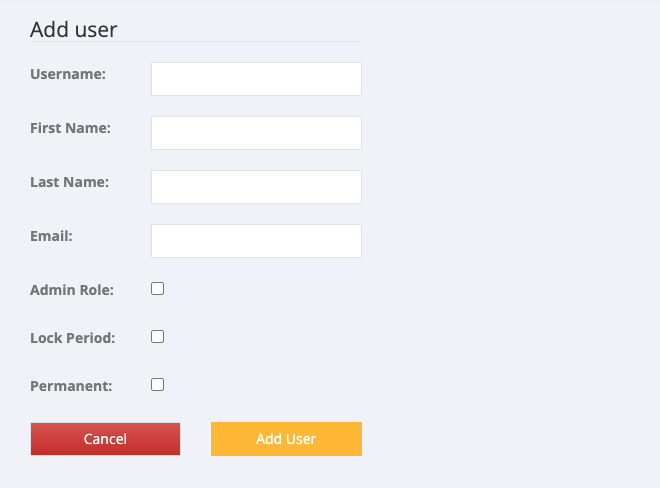
There is no password to set. PinvoiceR emails the new user a link to choose their own password.
Change a user's access
- Go to System > User Manager.
- In the Users List, tick or untick Admin Role, Lock Periods or Permanent on the user's row.
- Click Update User[s].
Remove a user's access
Tick Deleted on the user's row and click Update User[s]. A deleted user can no longer log in. Their history is kept.
Reset someone's password
- Go to System > User Manager.
- Click Reset Password on the user's row and confirm.
PinvoiceR emails the user a link to set a new password.
Change your own password
- Click your name at the top right and open Settings.
- Under Change Password, enter your Existing Password, then your New Password and Repeat Password.
- Click Update Password.
The password must contain at least one letter and one number and be at least 8 characters in length.
On the same screen you can change your name under Edit User Profile and upload a picture under Edit Avatar.
If you cannot see User Manager
Your user does not have Admin Role. Ask someone in your organisation who does to make the change, or raise a support ticket.