In a nutshell: Each employee has a Leave Ledger showing what they have accrued, taken and have left for each leave type. Open it from the Employee menu on the employee's record, and use Add Leave to add hours to a balance.
Applies to: Australia
About
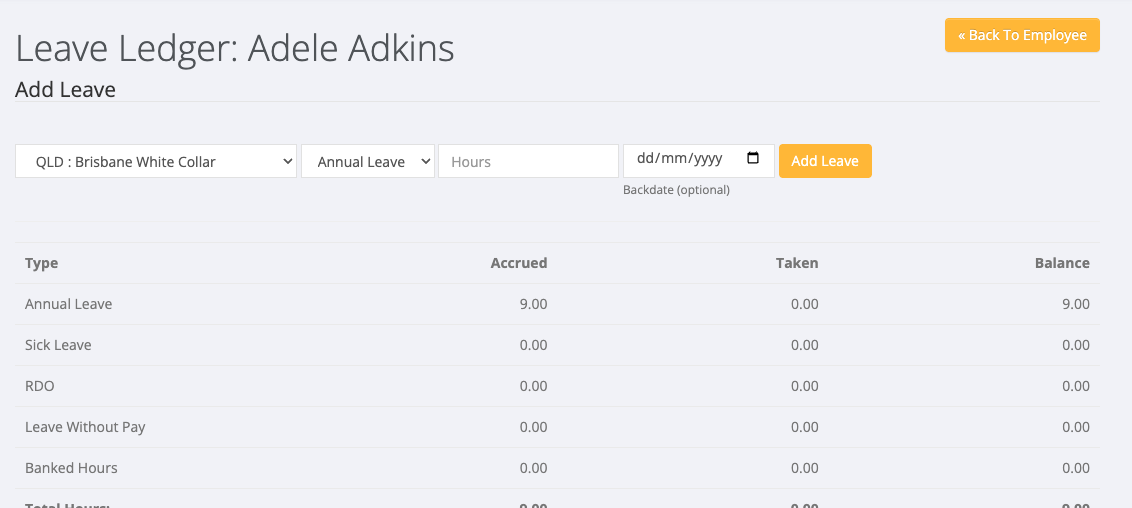
The Leave Ledger is the record of an employee's leave. It lists Annual Leave, Sick Leave, RDO, Leave Without Pay and Banked Hours, plus any custom leave types your organisation has set up.
Leave builds up as pays are processed. See How Leave Accrues. Add Leave is for adding hours by hand, for example an opening balance for an employee who has moved from another system.
Quick Reference
| Part of the screen | What it shows | When to use it |
|---|---|---|
| Add Leave | A division, a leave type, hours and an optional backdate | Adding hours to a balance by hand |
| Leave table | Type, Accrued, Taken and Balance for each leave type | Checking a balance |
| Banked Hours | The banked hours balance, with Hours, Rate and Accrue | Adding banked hours |
| Annual Leave Report | Annual leave accrued and taken by period | Seeing how a balance built up |
View an employee's leave balances
- Go to Employees > Search and open the employee.
- Click Employee at the top right of the record, then Leave.
The Leave Ledger opens with the employee's name in the title. The table shows Accrued, Taken and Balance in hours for each leave type, with Total Hours at the bottom.
The employee's record also shows their leave balances on the Employee Details tab.
Add hours to a leave balance
- Open the employee's Leave Ledger.
- Under Add Leave, choose the division.
- Choose the leave type, for example Annual Leave.
- Enter the number of hours.
- To date the entry in the past, enter a date in Backdate (optional).
- Click Add Leave.
The hours are added to Accrued for that leave type.
Add banked hours
- Open the employee's Leave Ledger and find Banked Hours.
- Enter the Hours and the Rate. A back-date is optional.
- Click Accrue.
Custom leave types
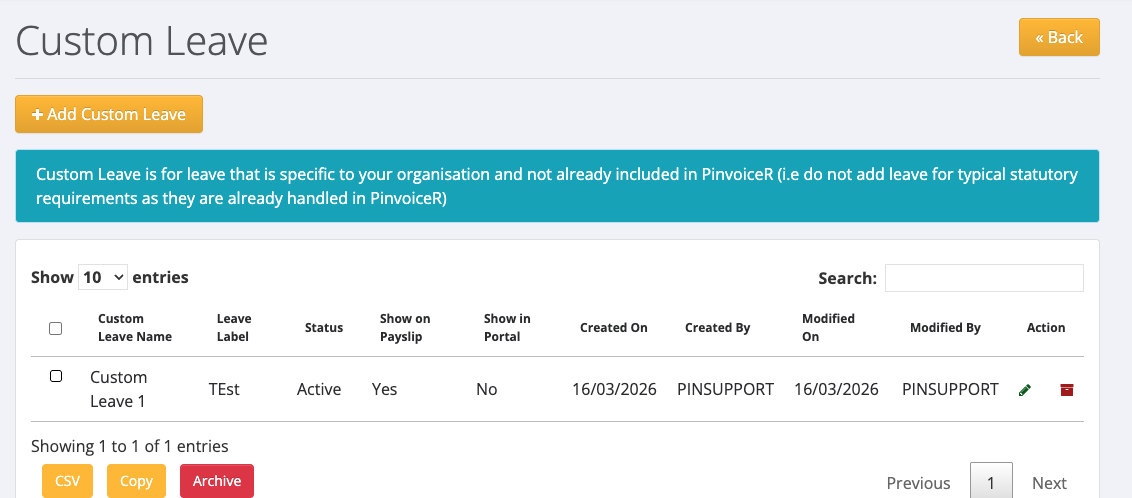
Leave types that are specific to your organisation are set up in System > Set Up > Custom Leave. Do not add the standard types there; they are already built in. Custom types appear in the Add Leave list and in the leave table.
Leave reports
For leave across all employees, go to Reports > Payroll > Employee Leave Liability Report. It shows leave liability by entity, division, employee or leave type.
If a balance is wrong
If a balance is higher than it should be and you need it reduced, raise a support ticket with the employee's name, the leave type and the correct balance.