In a nutshell: To have a new employee enter their own details, go to Employees > Onboard New Employee, enter their name, email, mobile and division, and click Set up onboarding. PinvoiceR emails them an invitation.
Applies to: Australia and New Zealand
About
Onboarding lets a new starter fill in their own personal, bank, tax and super details online, so you do not have to key them in. You create the employee with a few basics and PinvoiceR sends them an email with their login details.
Contractors are onboarded the same way from the Contractors menu.
Quick Reference
| Field | What it is for |
|---|---|
| First Name and Last Name | The new starter's name |
| Where the invitation is sent | |
| Mobile | The new starter's mobile number. Must have 10 digits |
| Division | The division the new starter belongs to |
| Employee type or Contractor type | The kind of worker |
| Set up onboarding | Creates the record and sends the invitation |
Onboard a new employee
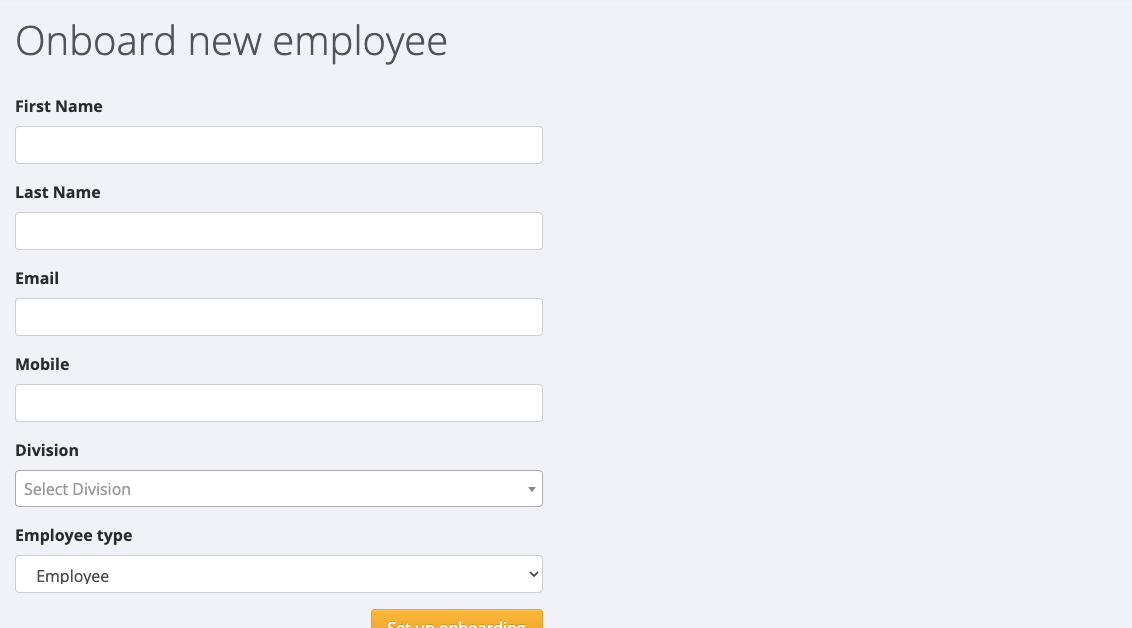
- Go to Employees > Onboard New Employee. Onboard new employee opens.
- Enter the First Name, Last Name, Email and Mobile.
- Choose the Division.
- Leave Employee type as Employee.
- Click Set up onboarding.
A message confirms that the employee was added and an email was sent to them to start onboarding.
Onboard a new contractor
- Go to Contractors > Onboard New Contractor.
- Fill in the same details and choose the Contractor type.
- Click Set up onboarding.
An onboarding invitation is sent for Contractor - On Hired. The other contractor types create the contractor without sending an invitation.
If the form will not save
| Message | What to do |
|---|---|
| "Existing employee already has this email address" | The email is already on another employee. Use that employee's record, or a different email |
| "Mobile number does not have 10 digits, please check and re-enter." | Enter the mobile as 10 digits with no spaces |
| "Could not find division" | Choose a division from the list |
The wording of the invitation email
The subject and message of the invitation come from the entity's onboarding settings: System > Set Up > Entity Editor, Onboarding tab.
If the new starter did not get the invitation
- Check the email address on their record.
- Open their record, click Employee, then Emails, to see the email log and whether the invitation was delivered.
If the address was wrong, correct it. To have the invitation sent again, raise a support ticket with the employee's name.
If you also use RecruitOnline, onboarding can be started and re-sent from the candidate's record there.