In a nutshell: Super contributions are submitted from Payroll > SuperStream. Start a New Submission, choose the pay runs to include, preview the contributions, then send or download the file.
Applies to: Australia
About
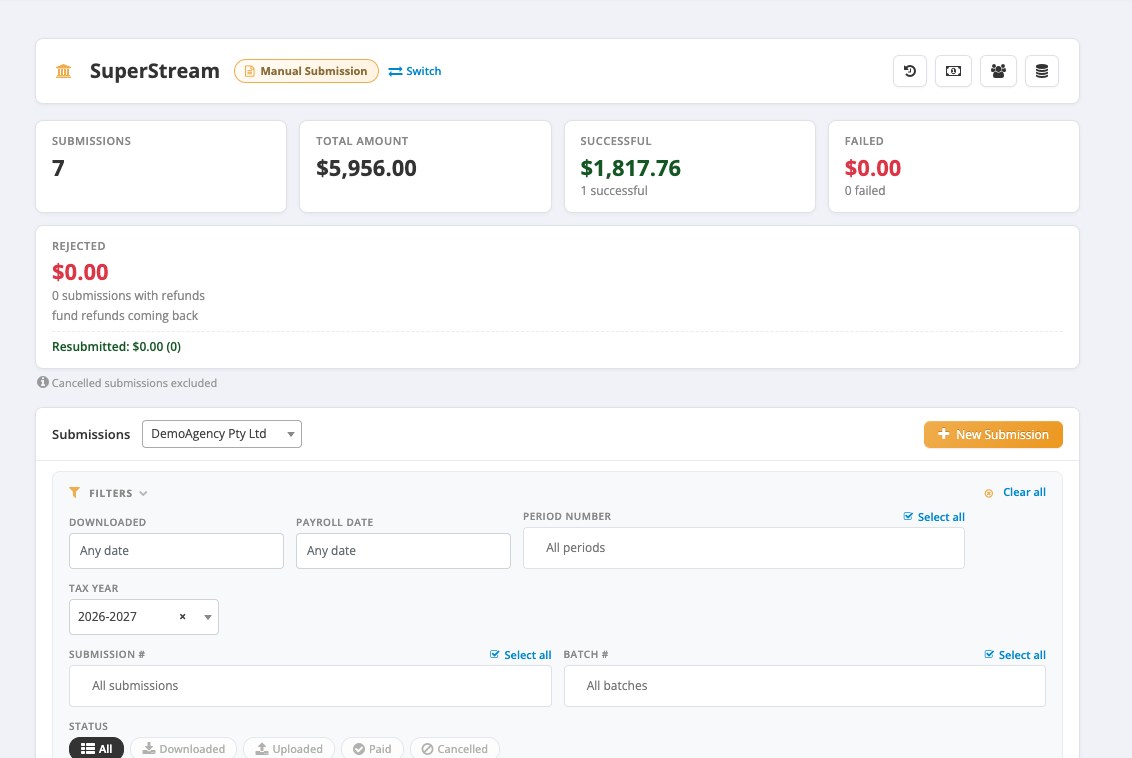
The SuperStream screen gathers the super owed from your processed pay runs into a submission. How the submission leaves PinvoiceR depends on the mode shown beside the screen title:
- Manual Submission: you download a contribution file and lodge it yourself with your clearing house or fund.
- OZEDI Submission: PinvoiceR sends the contributions through OZEDI for you.
Click Switch beside the mode to change it. This article covers Manual Submission. If the screen says SuperStream is not yet configured, raise a support ticket: the connection has to be set up by PinvoiceR support.
Quick Reference
| Part of the screen | What it shows | When to use it |
|---|---|---|
| Summary tiles | Submissions, Total Amount, Successful, Failed and Rejected | A quick check of the year so far |
| Submissions | Each submission with its status | Finding an earlier submission |
| All, Downloaded, Uploaded, Paid, Cancelled | Filters for the list by status | Narrowing the list |
| New Submission | Starts a submission | Paying super for one or more pay runs |
| Pay Runs tab | Pay runs with super not yet submitted | Choosing what to include |
| Skipped Employees tab | Employees left out, and why | Fixing employees before submitting |
| Recovered tab | Super to be recovered from over-payments | Checking credits. See Recovered Super |
Create a submission
- Go to Payroll > SuperStream.
- Choose the entity in Submissions, then click New Submission. New SuperStream Submission opens on the Pay Runs tab.
- Tick the pay runs to include. Each row shows the Batch #, Period End, Processing Date, number of Employees and Super Total.
- Check the Skipped Employees tab. An employee is skipped when something is missing, such as their super fund or member number.
- Click Preview Contributions.
- Check the contributions, then download the file.
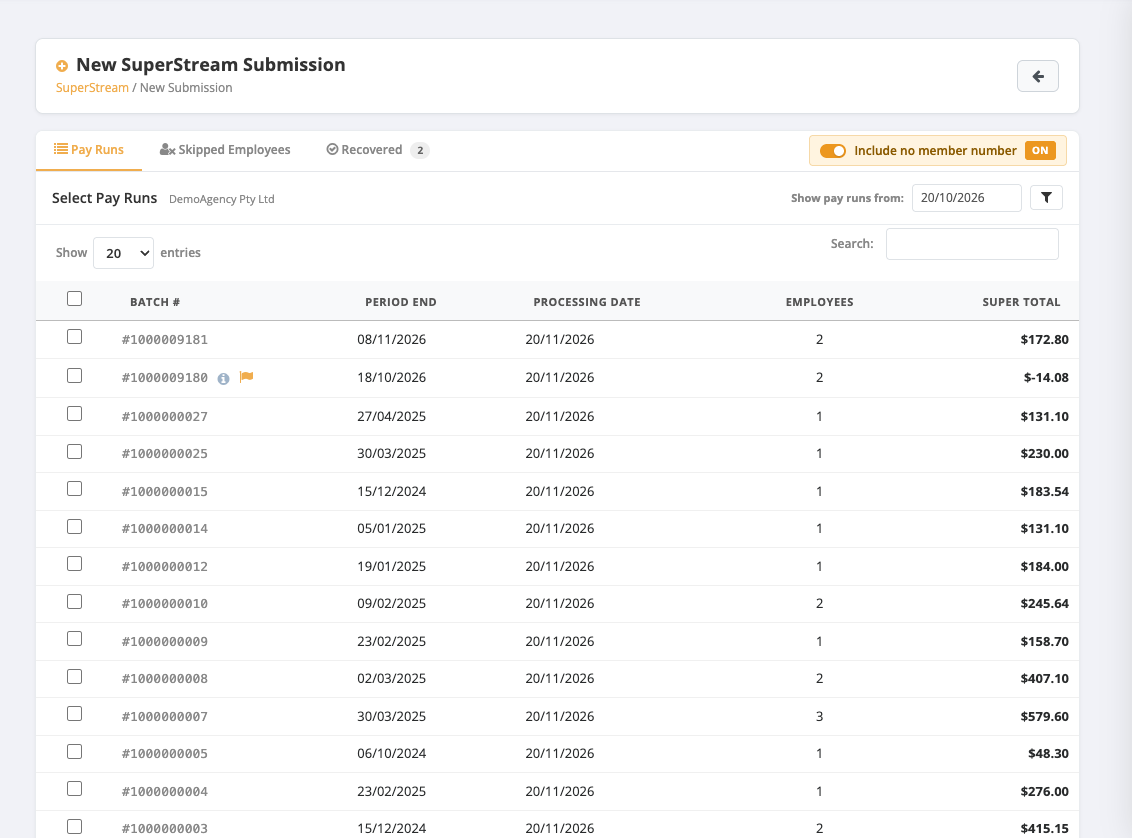
A pay run only appears here after its bank file has been downloaded, because that is what gives it a processing date.
After you download the file
- Lodge the file with your clearing house or fund.
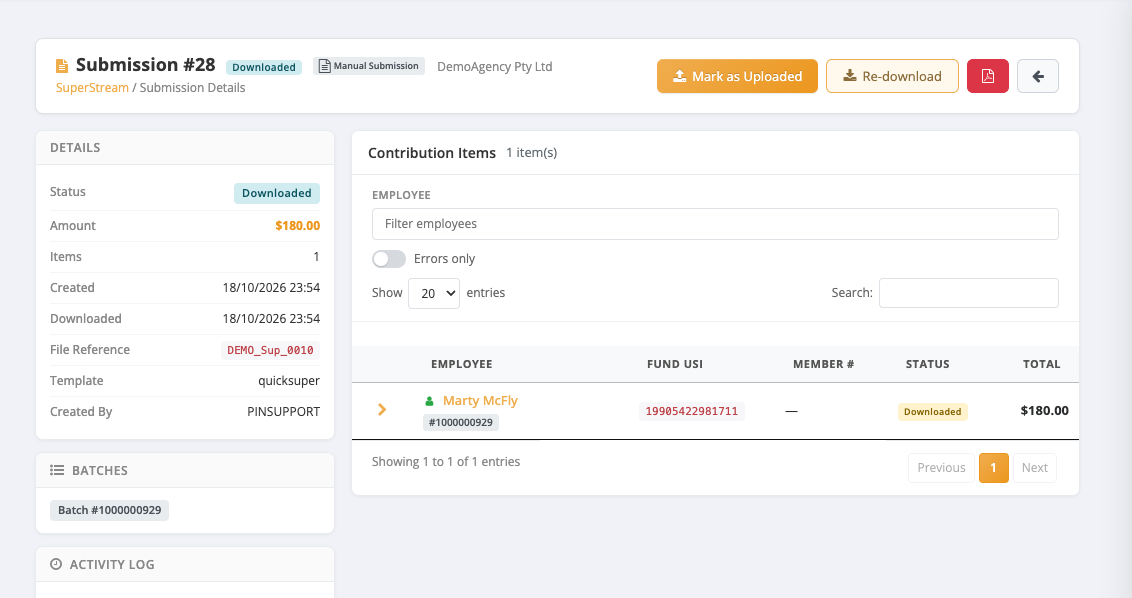
- Back in PinvoiceR, open the submission from the Submissions list.
- Click Mark as Uploaded once you have lodged it.
The submission's Status moves from Downloaded to Uploaded. Use Re-download if you need the file again.
If an employee is skipped
Open the employee's record, click Edit Employee, and check the Superannuation panel: Superannuation Fund and Superannuation Fund Member Number. See Super Funds. Then start the submission again.