In a nutshell: Deductions are set up on the Deductions tab of an employee's record. Each deduction has an amount per pay, and can carry a remaining balance so it stops being a set-and-forget amount and is paid off over several pay runs.
Applies to: Australia and New Zealand
About
A deduction takes an amount out of an employee's pay, either a fixed dollar amount or a percentage. An addition is the opposite and adds an amount to the pay.
To spread a total over several pay runs, for example recovering $200 at $25 per pay, give the deduction an Amount per pay and a Remaining Balance.
Child support deductions have their own form. See Child Support Deductions and Protected Earnings.
Quick Reference
| Field | What it does |
|---|---|
| Name | The name of the deduction |
| Reference | An optional reference. Letters and numbers only |
| GL Account Code | The account the deduction is posted to |
| Bank Account | Optional. The account the deducted money is paid to |
| Amount | Fixed Dollar Amount or Percentage |
| Amount per pay | The dollar amount taken from each pay |
| Pay Week | Which pays the deduction is taken from |
| Tax Type | None, Fees or Workplace Giving |
| Deduction Type | After Tax or Before Tax |
| Recalculate Balance | Whether the deduction keeps a remaining balance |
| Remaining Balance | The total still to be deducted |
| Protected Earnings | An amount of pay the deduction must leave untouched |
| Effective Date and End Date | Optional. When the deduction starts and stops |
| Order | The order this deduction is taken in, when the employee has several |
Open an employee's deductions
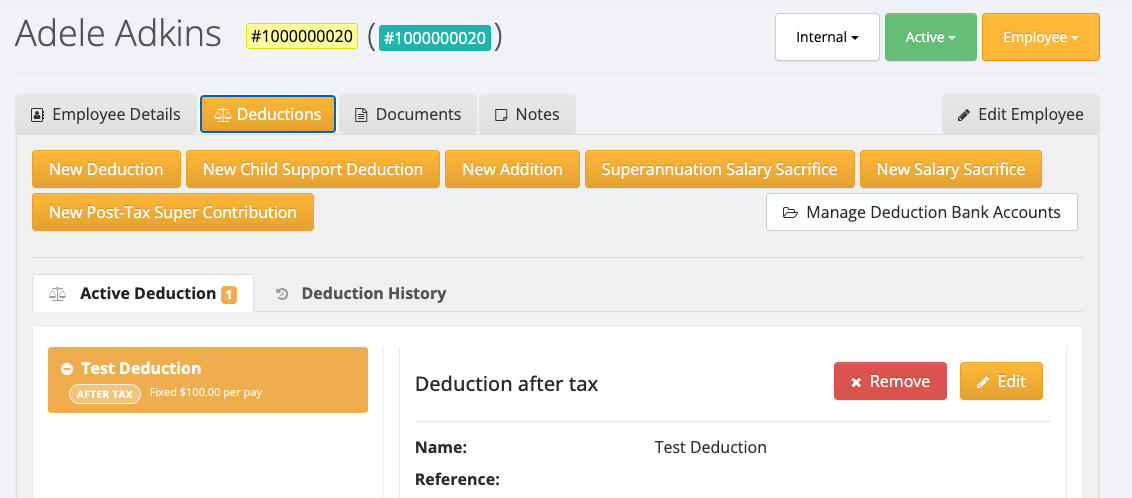
- Go to Employees > Search and open the employee.
- Click the Deductions tab.
The Active Deduction tab lists the employee's current deductions. Deduction History lists past ones.
Add a deduction
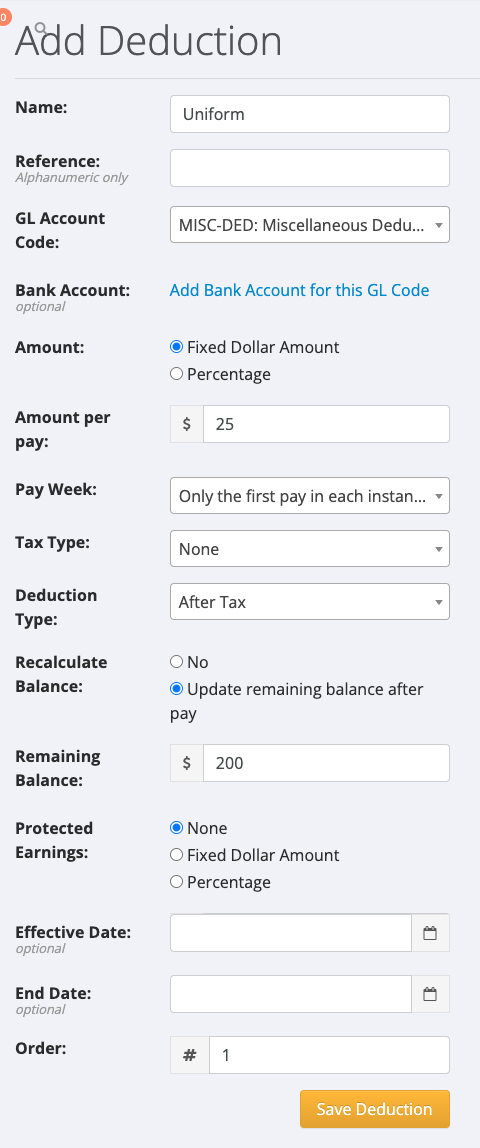
- On the Deductions tab, click New Deduction. The Add Deduction screen opens.
- Enter a Name.
- Choose the GL Account Code.
- Under Amount, choose Fixed Dollar Amount and enter the Amount per pay, or choose Percentage and enter the percentage.
- Choose the Pay Week:
- Only the first pay in each instance of this employee's pay cycle takes the deduction once per pay cycle, even if the employee is paid more than once in that cycle.
- Every pay for this employee takes it from every pay.
- Choose the Tax Type and Deduction Type.
- Click Save Deduction.
Only Fees and Workplace Giving deductions are reported to the ATO through Single Touch Payroll.
Spread a deduction over several pay runs
- Add the deduction as above, with the Amount per pay you want taken each time.
- Under Recalculate Balance, choose Update remaining balance after pay. The Remaining Balance field appears.
- Enter the total still to be deducted in Remaining Balance.
- Click Save Deduction.
Enter a Remaining Balance greater than zero. If it is left blank or zero, the deduction is saved with Recalculate Balance set to No.
To see what is left on a deduction, open the Deductions tab, or go to Employees > Current Deductions for all employees.
Change or remove a deduction
- On the Deductions tab, select the deduction on the left.
- Click Edit to change it, or Remove to stop it.
A removed deduction moves to Deduction History.
Add an addition
Click New Addition on the Deductions tab. The form is the same, but an addition cannot have a remaining balance or protected earnings.
In New Zealand
- The deduction form has no Tax Type or Deduction Type.
- When Amount is Percentage, choose Net or Gross under Percentage calculated from.