In a nutshell: GL account codes are listed in System > Set Up > Chart of Accounts Editor. You can change an account's code and description. To have a new account added, raise a support ticket.
Applies to: Australia and New Zealand
About
Every amount PinvoiceR posts goes to a general ledger (GL) account: wages, tax, super, each kind of leave, each kind of deduction, sales and so on. The Chart of Accounts Editor lists those accounts.
When you export journals or invoices to your accounting system, these codes are what your accounting system receives. Change a code here so it matches the account in your accounting system.
Quick Reference
| Where | What it shows | When to use it |
|---|---|---|
| System > Set Up > Chart of Accounts Editor | Every GL Account Code and its Description | Checking or renaming an account |
| System > Set Up > Chart of Accounts Report | A report of all GL accounts and their properties | Reviewing the whole chart |
| Employee, Deductions tab | GL Account Code on each deduction | Choosing where a deduction is posted |
| System > Set Up > Division Editor | Each division, including its account mapping | Mapping accounts for a division |
View the GL accounts
- Go to System > Set Up and click Chart of Accounts Editor.
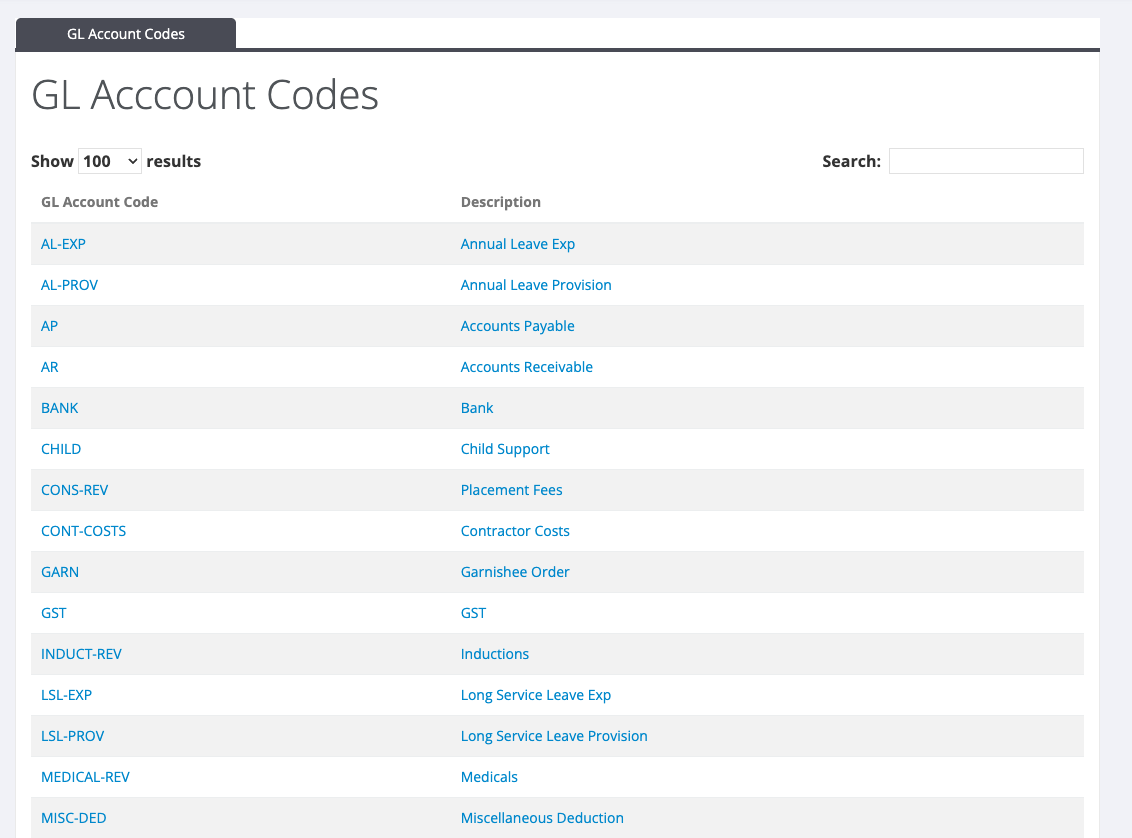
- The GL Account Codes tab lists each code with its description. Use Search to find one.
Change an account's code or description
- In the list, click the account.
- Change the GL Account Code or Description. Use Is Active to switch the account off.
- Save the change.
Add a new account
New GL accounts cannot be added from this screen. Raise a support ticket with the code and description you need, and say what the account is for: a deduction, a salary sacrifice, or revenue.
How accounts connect to pays
- Pays: when a batch is processed, each part of the pay is posted to its own account, for example wages, PAYG and super.
- Deductions: each deduction posts to the GL Account Code chosen on the deduction. See Deductions.
- Divisions: each division has its own account mapping, which turns the accounts into the codes your accounting system expects for that division. It is set in System > Set Up > Division Editor.
If opening a division in the Division Editor shows an error that a GL account code "is not defined in the chart of accounts", the division refers to an account that does not exist. Raise a support ticket and include the code named in the message.