In a nutshell: Locking a period closes a financial period so nothing more can be posted to it. Go to System > End of Month > Lock Periods and click Lock Next Period.
Applies to: Australia and New Zealand
About
PinvoiceR works in financial periods within a tax year. The system is always "in" one period: the first one that has not been locked. Pay batches are posted to that period.
Locking the current period moves the system on to the next one. Periods are locked in order, one at a time.
Quick Reference
| Part of the screen | What it shows |
|---|---|
| Locked Periods | Every period that has been locked, by Tax Year and Period Number |
| Lock Next Period | The next period to be locked, for example 2026-2027,2 |
Lock a period
- Go to System > End of Month and click Lock Periods. Locked Periods opens.
- Check the list to see the last period that was locked.
- Check the button shows the period you mean to lock, for example Lock Next Period: 2026-2027,2.
- Click the button.
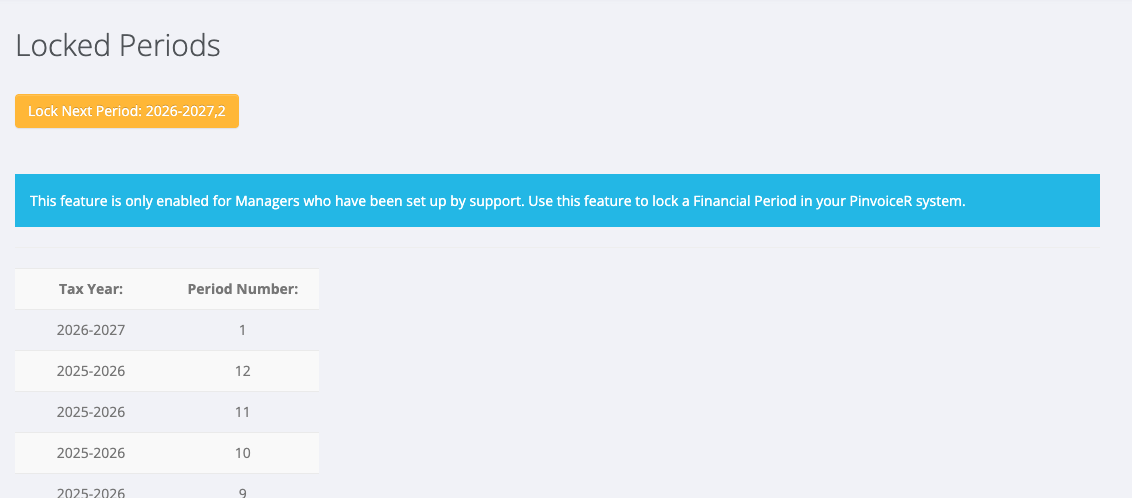
Make sure everything for the period has been processed before you lock it. A locked period cannot be posted to.
Who can lock periods
Only users with Lock Period access can lock a period. Without it you see "Access Denied. Please contact your Manager to use this feature".
A user with Admin Role can give this access in System > User Manager. See Users and Passwords.
The period warning on a pay batch
When you process a pay batch you may see: "It looks like this batch should be processed for period" followed by a period number, and "Currently your system is in period" followed by another. It means earlier periods have not been locked yet, so the batch will be posted to the period your system is in. Lock the earlier periods first if the batch should go to a later one.
At the start of a new tax year, a batch cannot be processed until the final period of the previous year has been locked.
If you locked a period by mistake
A period cannot be unlocked from this screen. Raise a support ticket with the tax year and period number.
In New Zealand
- The menu item is System > End of Month > Lock Periods, without the number.