In a nutshell: Go to Invoices > Export Invoices to download invoices as a file for your accounting system. After importing the file, click Mark as downloaded so the invoices do not appear in the next export.
Applies to: Australia and New Zealand
About
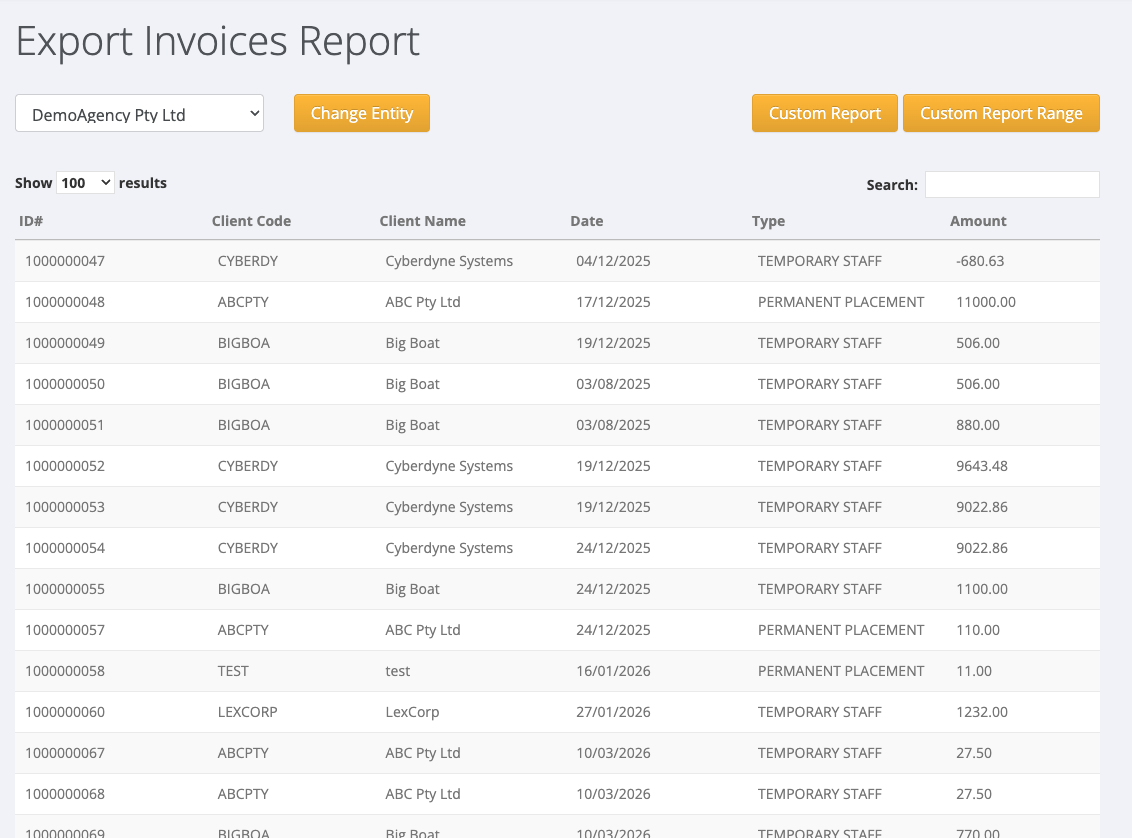
The Export Invoices Report lists invoices that have not been exported yet. You download them in the format your accounting system needs, import the file there, and then mark them as downloaded in PinvoiceR.
Downloading a file does not mark the invoices. They stay on the list, and you can download them again, until you click Mark as downloaded.
Quick Reference
| Button | What it does |
|---|---|
| Change Entity | Lists the unexported invoices for the entity you choose |
| Xero Download CSV | Downloads the listed invoices as a Xero CSV |
| MYOB Download CSV, MYOB Download TXT, MYOB Download CSV (NEW), MYOB Rows Download CSV, MYOB Account Right Download CSV | Downloads the listed invoices in a MYOB format |
| Custom Report | Downloads the listed invoices as a general CSV |
| Custom Report Range | Downloads invoices for a date range, whether or not they have been exported |
| Mark as downloaded | Removes the listed invoices from the export list |
Export invoices
- Go to Invoices > Export Invoices.
- Choose the entity and click Change Entity.
- Check the list: ID#, Client Code, Client Name, Date, Type and Amount.
- Click the download button for your accounting system, for example Xero Download CSV.
- Import the file into your accounting system and check it loaded correctly.
- Back in PinvoiceR, click Mark as downloaded. Confirm the message.
Do step 6 last. Mark as downloaded applies to every invoice on the page and cannot be undone.
Export an invoice again
Once invoices are marked as downloaded they leave the export list. To get them again:
- Click Custom Report Range.
- Enter the Start and End dates and click View Report.
- Click Download Custom CSV.
This file includes invoices in the date range whether or not they were exported before. It is a general CSV and does not include a due date column, so check the due dates after importing.
Putting an invoice back on the export list
There is no button to un-mark an invoice. If an invoice was marked as downloaded by mistake and you need it in a Xero or MYOB format file again, raise a support ticket with the invoice numbers.