In a nutshell: An invoice text template sets the header and footer text printed on a client's invoices. Create templates in System > Set Up > Invoice Template Editor, then choose one on the client.
Applies to: Australia and New Zealand
About
By default, the text at the top and bottom of an invoice comes from the entity. A template overrides that for the clients you attach it to. In the words on the screen: "These templates can be added to clients and will override the entity level configuration. The entries here will replace the text on the header and footer of the invoice."
Templates are plain text. They do not use merge fields.
Quick Reference
| Field | What it does |
|---|---|
| Template Name | The name you pick the template by on a client |
| Header | Text printed at the top of the invoice. Up to 8 lines |
| Footer | Text printed at the bottom of the invoice. Up to 8 lines |
Create a template
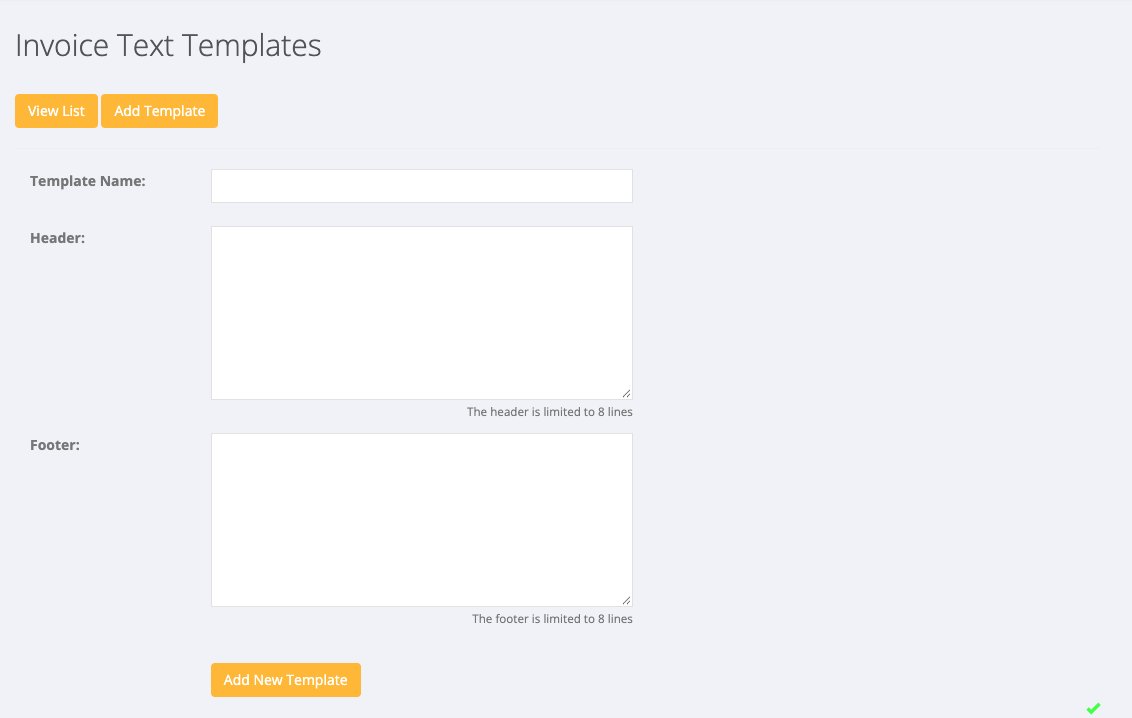
- Go to System > Set Up and click Invoice Template Editor. Invoice Text Templates opens.
- Click Add Template.
- Enter a Template Name.
- Enter the Header and Footer text. Each is limited to 8 lines.
- Click Add New Template.
Use a template on a client
- Open the client and edit its details.
- In Invoice Text Template, choose the template. Entity Default means no template is used.
- Save the client.
The template applies to invoices created for that client from then on.
Change or delete a template
- Go to System > Set Up > Invoice Template Editor and click View List.
- Click the template, change it and save, or delete it.
Deleting a template also removes it from every client that used it. Those clients go back to the entity's header and footer.
The text of the invoice email
The email that carries the invoice is set separately, on the entity, not in a template. If you need the email wording changed, raise a support ticket.