In a nutshell: Go to Invoices > Invoice Report, find the invoices, tick them and click Send Invoices. Each invoice is emailed as a PDF to the email address on the client's billing location.
Applies to: Australia and New Zealand
About
The Invoice Report is the list of invoices you have created. From it you can look up an invoice, filter by client or status, and send invoices by email.
Invoices go to the Bill To Email on the client's billing location. To send to more than one address, separate the addresses with a semicolon.
Quick Reference
| Part of the screen | What it shows | When to use it |
|---|---|---|
| Invoice Lookup | A box for an invoice number, with Find | Opening one invoice you know the number of |
| Find invoices dated between | From and To dates, with By date range | Listing invoices for a date range |
| Period Number | A period, with By period number | Listing invoices for a period |
| Entity/Division, Client/Location, Status, Invoice Type, Service Type | Filters | Narrowing the list |
| Select all, Select Filtered, Deselect all | Ticks invoices in the list | Choosing what to send |
| Send Invoices | Emails the ticked invoices | After ticking the invoices |
Send invoices
- Go to Invoices > Invoice Report.
- List the invoices: enter From and To dates and click By date range, or choose a Period Number and click By period number. A date range can be no longer than a month.
- Narrow the list with the filters if you need to.
- Tick the invoices to send, or click Select Filtered.
- Click Send Invoices.
- Check the list on the confirmation screen, then confirm.
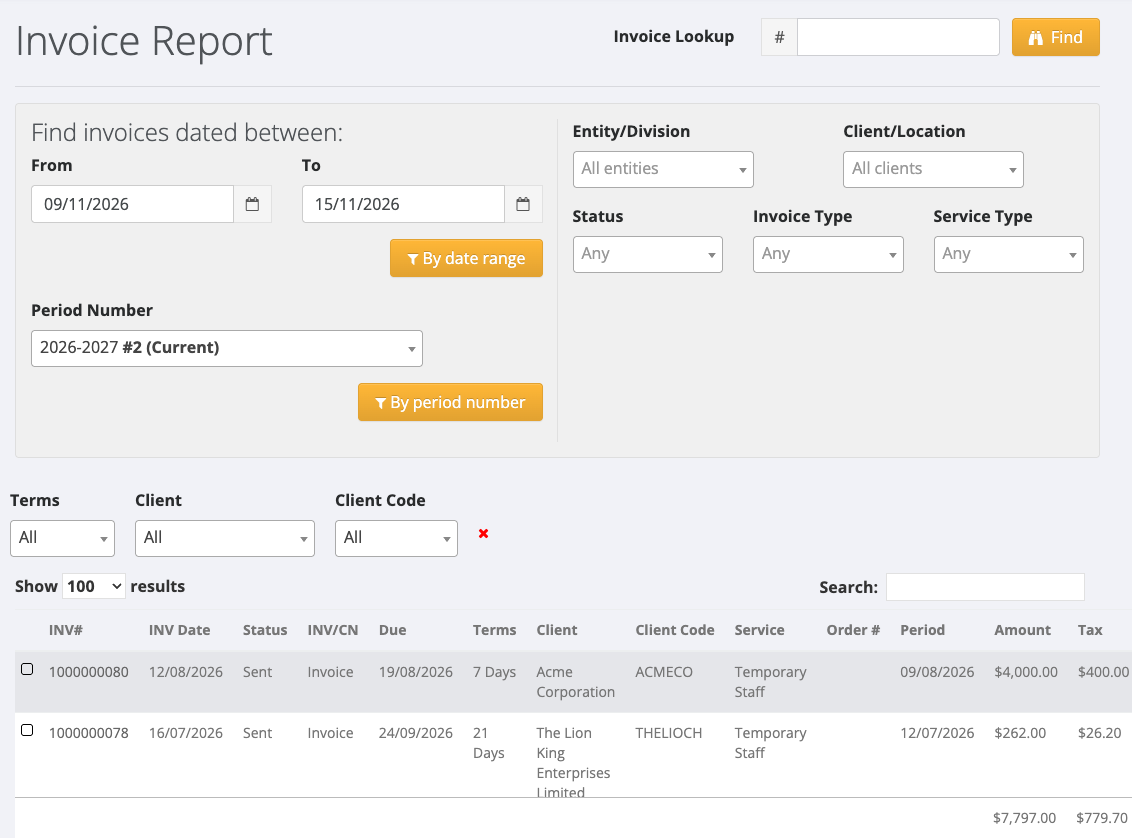
The list shows each invoice's INV#, INV Date, Status, Due, Terms, Client, Amount, Tax, Total and Balance.
If an invoice has already been emailed
PinvoiceR warns you before sending an invoice a second time. The confirmation screen shows which invoices have already been emailed. To send them again, tick Yes, email these invoices again. If you do not tick it, nothing is sent.
Check whether an invoice was delivered
Open the invoice. Emailed in the invoice header shows how many times it has been emailed, when, and by whom, or No if it has not been sent.
For the delivery result of each email, open the client's billing location and click Email Log. The log shows each email's status, such as delivered or failed, with the date and time.
If an invoice is not sent
- A message that an address "is not a valid email address" means the Bill To Email on the billing location is missing or wrong. Correct it and send again.
- "Please select invoices to send" means no invoice was ticked.