In a nutshell: The Award Engine Editor is where the rules that turn timesheet hours into pay code items are set up: which hours are ordinary, which are overtime, and which attract a shift rate or an allowance. Find it at System > Award Engine Editor.
Applies to: Australia and New Zealand
About
When a timesheet is imported, the award engine reads the start and finish times and works out how each hour should be paid. It does this from rules you set up in four layers:
- Timezones define the work periods in a day (Early, AM, PM, Night) and the overtime rules.
- Rule Groups link an award code to a timezone.
- Jobs sit inside a rule group, for example Warehouse or Office.
- Award Items and Allowances sit inside a job and set what each kind of day and hour is paid as.
Quick Reference
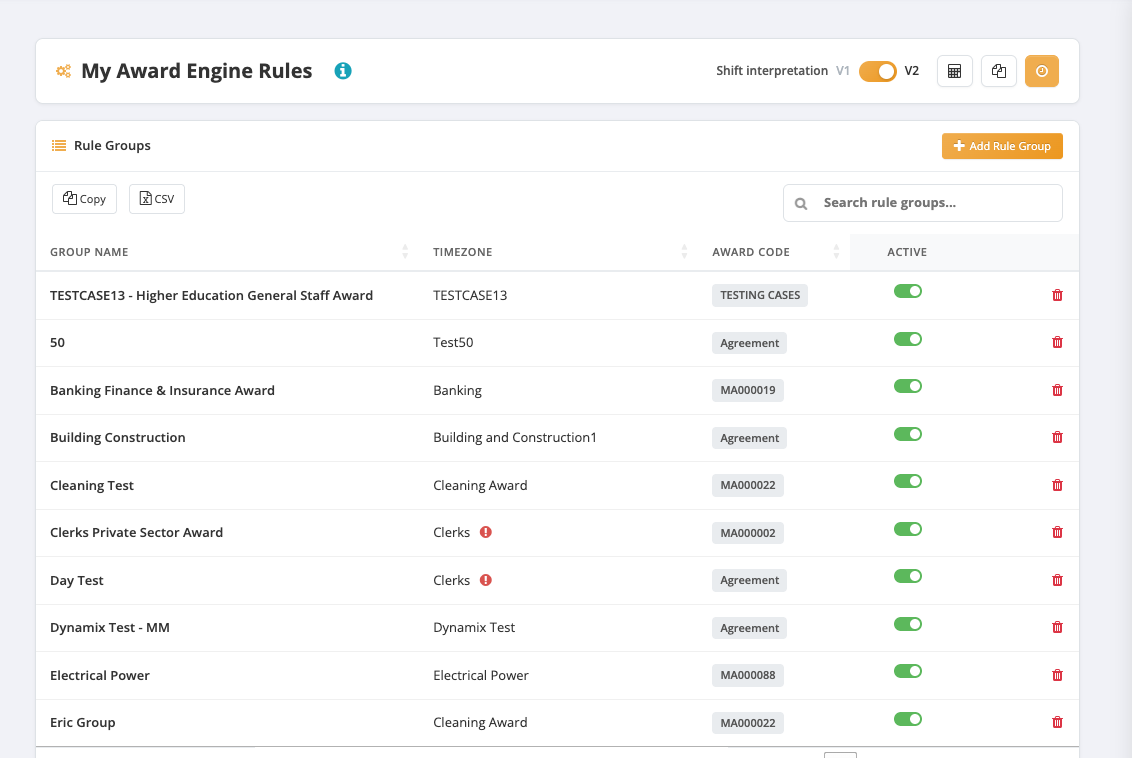
| Part of the screen | What it shows | When to use it |
|---|---|---|
| My Award Engine Rules | Your rule groups | The starting point |
| Setup Guide | The four setup steps in order | Setting up rules for the first time |
| Rule Groups | Each group's Group Name, Timezone, Award Code and whether it is Active | Finding or switching off a rule group |
| Add Rule Group | A new rule group | Starting a new award |
| Shift interpretation | V1 or V2 | Shows which version of the engine your system uses |
Set up award rules
The Setup Guide on the screen gives the order:
- Create Timezone. Define work periods (Early, AM, PM, Night) and overtime rules. Click Go to Timezones.
- Create Rule Group. Create a rule group linking an award code with a timezone. Click Add Rule Group.
- Add Jobs. Add job types within your rule group.
- Configure Award Items. Set up pay rates for each day type (Ordinary, OT, Double Time).
After that, Add Allowances to configure meal, travel or other allowances for jobs.
Add a rule group
- Go to System > Award Engine Editor.
- Click Add Rule Group.
- Enter the rule group name and award code, and choose the timezone.
- Add jobs now with Add Another Job, or add them later.
- Click Create Group.
Switch a rule group off
In the Rule Groups list, use the switch in the Active column. An inactive rule group is no longer used to interpret timesheets.
Where the rules are used
A job from the award engine is attached to the things it should apply to: a pay code, a client, or an order. Timesheets for that pay code, client or order are then interpreted by that job's rules.
Every award item must lead to a pay code item on the pay code being paid. If it does not, the timesheet shows an error asking you to update the pay code. See Pay Codes and Pay Code Items.
Which version you are on
Shift interpretation at the top of the screen shows V1 or V2. This article describes V2. Changing version changes how every timesheet is interpreted, so it is done by PinvoiceR support. Raise a support ticket if you need it changed.
In New Zealand
- The menu item is System > Pay Engine Editor. The screen is the same.