In a nutshell: A pay code holds the pay and charge rates for a job. Each line in it is a pay code item, such as Normal Hours or Afternoon Shift, with its own Pay Rate and Charge Rate. Global pay codes are managed in System > Global Pay Codes.
Applies to: Australia and New Zealand
About
When an employee is paid, each line of their pay uses a pay code item. The item decides the rate they are paid, the rate the client is charged, whether super is paid, whether the amount is taxable, and how much leave accrues.
A pay code item's name must be one of the item names set up for your system. If an order uses a pay code whose items are inactive or missing, timesheets for that order cannot be paid and you see "Could not find pay code items".
Quick Reference
| Part of the screen | What it shows | When to use it |
|---|---|---|
| Pay Code List: Global Pay Codes | Every global pay code | Finding a pay code |
| Add Pay Code | A blank pay code | Creating a new pay code |
| Edit This Pay Code | The pay code's own details | Renaming it or making it inactive |
| Add Pay Code Item | A blank item | Adding a rate line to the pay code |
| Schedule rates change | New rates for several items from a date | Applying a rate rise |
| Rate History | Past and future rates for each item | Checking what a rate was on a date |
Open a pay code
- Go to System > Global Pay Codes.
- Click the pay code in the list.
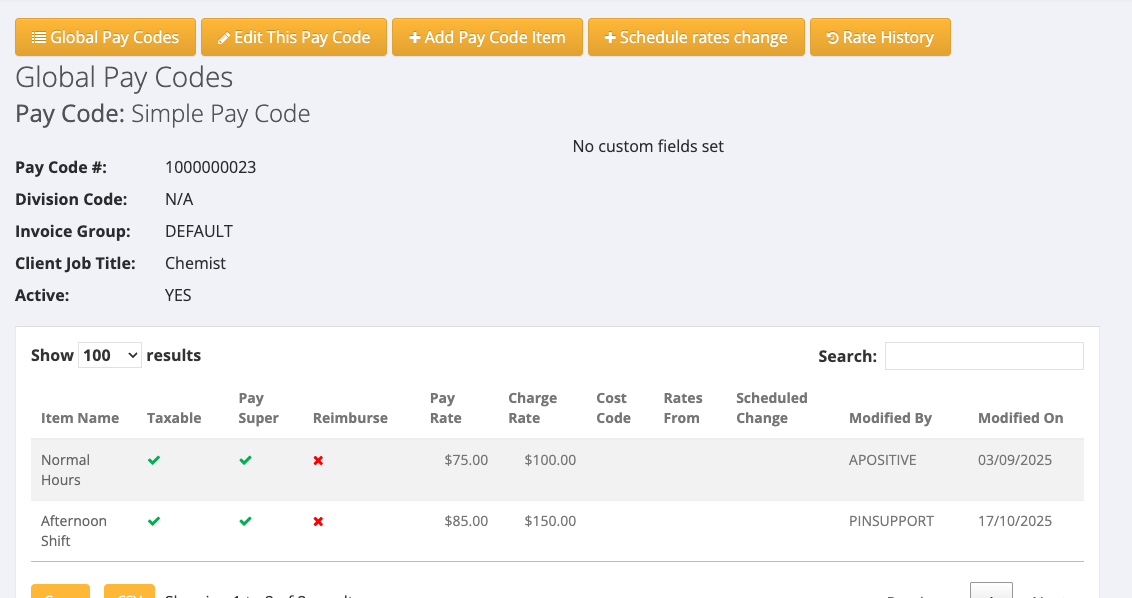
The pay code opens with its details at the top and its items below. Each item shows Taxable, Pay Super, Reimburse, Pay Rate, Charge Rate, Rates From and Scheduled Change.
Change a pay code item
- Open the pay code and click the item's name. Edit Pay Code Item opens below the list.
- Change the fields you need. The main ones are:
- Pay Rate and Charge Rate
- Annual Leave Rate, Sick Leave Rate and RDO Rate
- Pay Super and Taxable
- Active
- Click Edit Item.
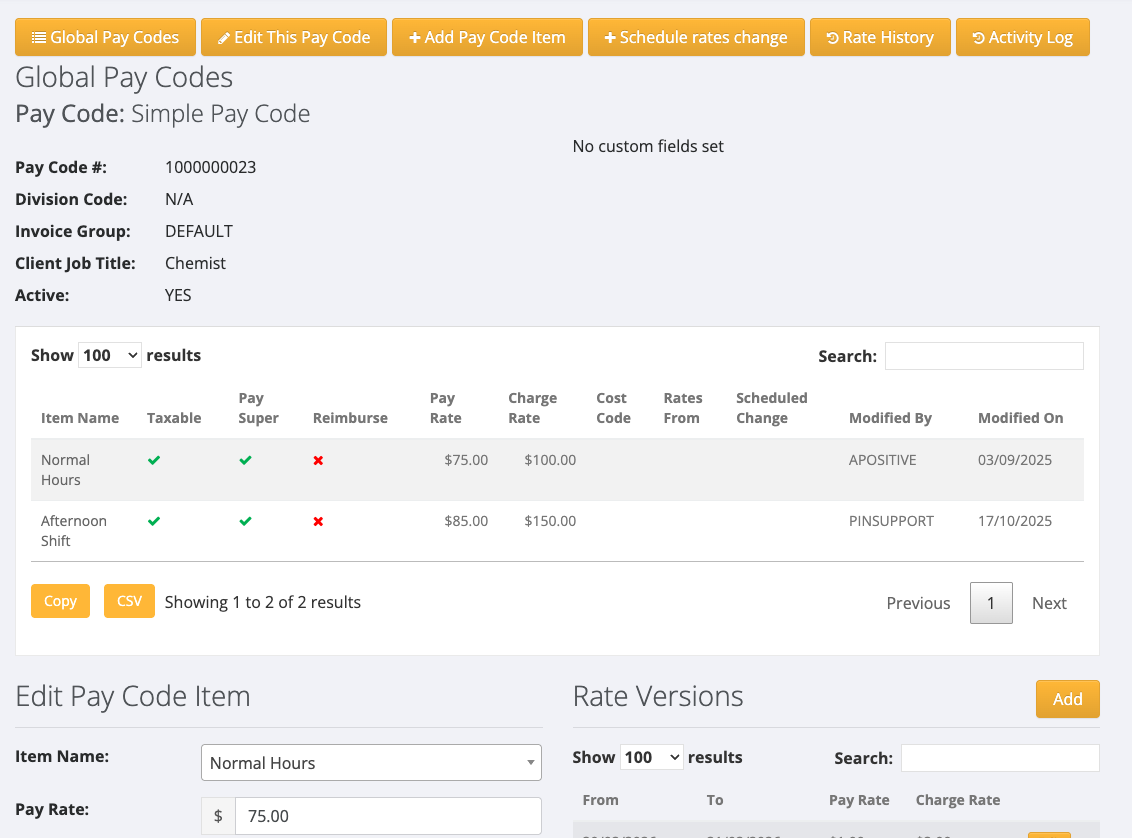
Changing Pay Rate or Charge Rate here changes the item's base rate. To change a rate from a set date and keep the old rate for earlier pays, use a rate version. See Rate Versions.
Add a pay code item
- Open the pay code and click Add Pay Code Item.
- Choose the Item Name and enter the Pay Rate and Charge Rate.
- Fill in the other fields as needed and save the item.
"Could not find pay code items"
This message appears on timesheets and when paying an employee. It means the pay code on the order has no usable items. Check that:
- The pay code is active. Open it and check Active shows YES.
- The pay code has at least one active item.
If both are true and the message remains, raise a support ticket and include the pay code number shown in the message.
In New Zealand
- Pay code items do not have Annual Leave Rate, Sick Leave Rate or RDO Rate. Leave is worked out differently in New Zealand.