In a nutshell: A rate version gives a pay code item a different Pay Rate and Charge Rate for a date range. Use rate versions to bring in a rate rise from a set date without changing what earlier pays were calculated on.
Applies to: Australia and New Zealand
About
Each pay code item has a base rate. A rate version overrides the base rate between its From and To dates. Pays for dates inside the range use the version's rates. Pays outside it use the base rate, or another version that covers the date.
You can add a version to one item, or schedule a change for several items in a pay code at once.
Quick Reference
| Part of the screen | What it shows | When to use it |
|---|---|---|
| Rate Versions panel | The versions for one item, with From, To, Pay Rate and Charge Rate | Seeing or changing one item's versions |
| Add | A blank rate version for the item | Adding a version to one item |
| Schedule rates change | Every item in the pay code, with new rate boxes | Changing several items at once |
| Add via CSV | A CSV upload of rate versions | Loading many versions from a file |
| Rate History | Each item's base rates and updated rates with dates | Checking what a rate was on a date |
Add a rate version to one item
- Go to System > Global Pay Codes, open the pay code, and click the item.
- In the Rate Versions panel, click Add. Add Rate Version opens.
- Enter the Pay Rate and Charge Rate.
- Enter the From date and, if the rate has an end, the To date. Both are optional. A blank date means no limit on that side.
- Add a Note if you want one.
- Click Add.
Change the rates for several items
- Open the pay code and click Schedule rates change. Add Rate Versions opens, listing every item with its current pay and charge rate.
- Enter the From date, and a To date if needed.
- Tick each item you want to change and enter its new Pay Rate and Charge Rate.
- Click Add Rate Versions.
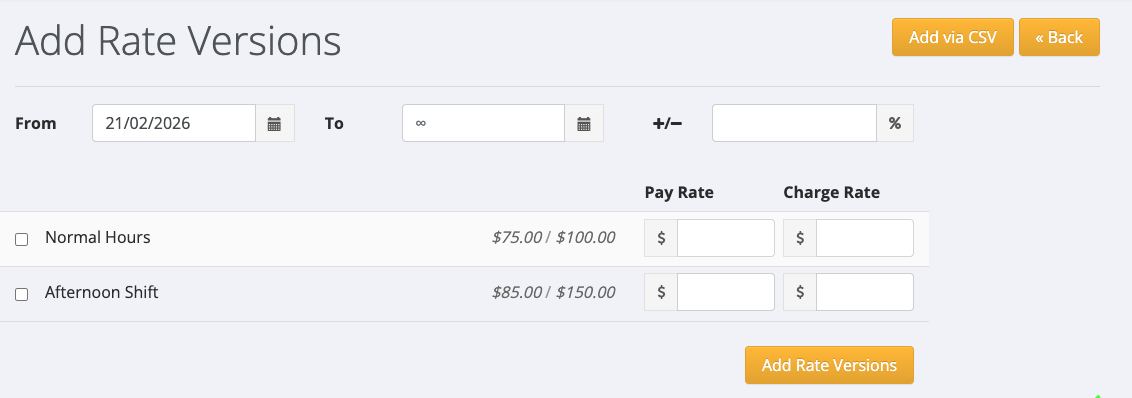
To load versions from a file, click Add via CSV.
Check the rate history
- Open the pay code and click Rate History.
- The table shows each item's Base Pay and Base Charge, and each version's Updated Pay, Updated Charge, From and To.
- To see the rates that applied on one day, enter a Look up date and click Look up rates.
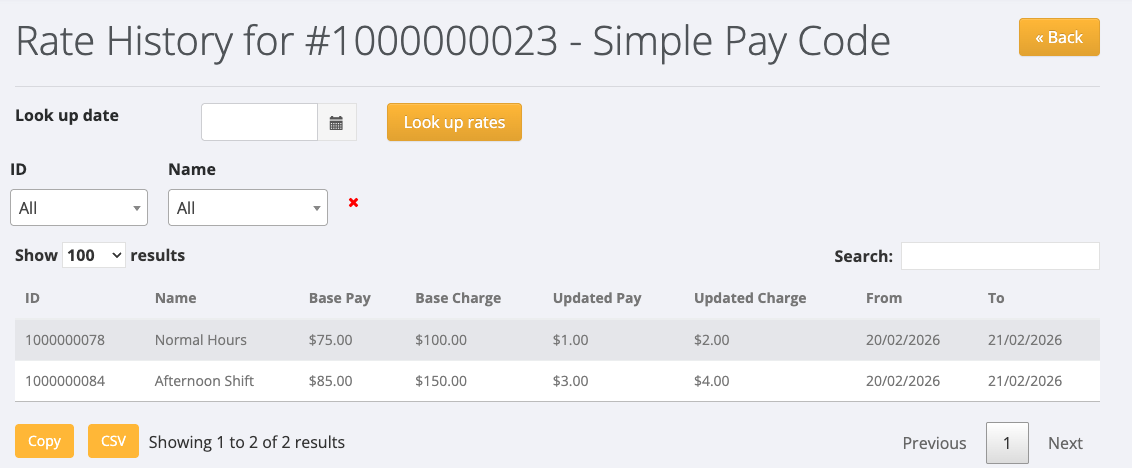
Change or delete a rate version
- Open the item and find the version in the Rate Versions panel.
- Click Edit on its row. Edit Rate Version opens.
- Change the rates or dates and click Edit, or click Delete to remove the version.
Take care when deleting. PinvoiceR does not check whether a version has already been used. If you delete a version that covered pays not yet processed, those pays are calculated on the base rate.
If dates overlap
Two versions for the same item cannot cover the same dates. If they do, you see a message that the dates "overlap with other rate versions". Edit the other version's dates first, then add the new one.