In a nutshell: Record an employee's expense claim in Payroll > Reimbursements, approve it, put it into a batch, and pay it with the Reimbursements Bank File.
Applies to: Australia and New Zealand
About
A reimbursement repays an employee for something they paid for themselves. It is kept separate from their wages: it has its own approval steps and its own bank file.
Quick Reference
| Tab | What it shows | When to use it |
|---|---|---|
| Add | The New reimbursement form | Recording a claim |
| Incomplete | Claims missing details | Finishing a claim |
| Unapproved | Claims waiting for approval | Approving claims |
| Approved | Approved claims not yet in a batch | Creating the batch to pay |
| Processed | Claims that have been put into a batch | Checking what has been paid |
Record a reimbursement
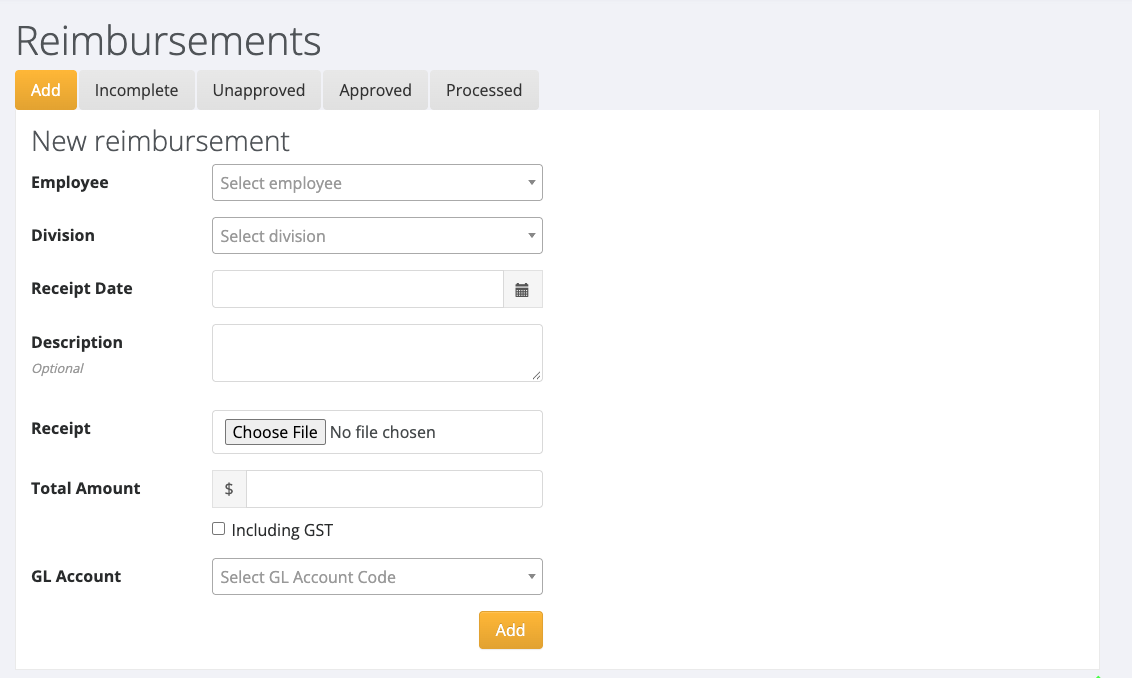
- Go to Payroll > Reimbursements. The Add tab opens with New reimbursement.
- Choose the Employee and the Division.
- Enter the Receipt Date.
- Add a Description if you want one. It is optional.
- Under Receipt, choose the image of the receipt.
- Enter the Total Amount. Tick Including GST if the amount includes GST.
- Choose the GL Account the expense belongs to.
- Click Add.
Approve reimbursements
- Click the Unapproved tab.
- Tick the reimbursements to approve.
- Click Approve Selected.
Pay reimbursements
- Click the Approved tab.
- Tick the reimbursements to pay and create the batch.
- Go to Payroll > Download Bank File and click Reimbursements Bank File.
- Tick the batch, continue, and download the bank file.
- Upload the file to your bank.
Reimbursements are paid by their own bank file, not the pay bank file. See Downloading the Bank File for how the bank file screens work.
Good to know
When you process a pay batch for an employee who has a reimbursement waiting, PinvoiceR shows a reminder on the Pay Report. The reimbursement is not included in that pay.