In a nutshell: After you process a pay batch, download its bank file (ABA file) from Payroll > Download Bank File and upload that file to your bank to pay your employees.
Applies to: Australia. For New Zealand, see Downloading the Bank File (New Zealand).
About
A bank file lists the net pay for every employee in one or more processed pay batches. PinvoiceR creates it as an ABA file, the format Australian banks accept for bulk payments.
Downloading the bank file also sets the batch's pay date. A batch needs a pay date before it can be sent to the ATO through STP, so download the bank file before you go to Payroll > STP.
Once the bank file has been downloaded, the batch can no longer be undone. Check the Pay Report before you download.
Quick Reference
| Part of the screen | What it shows | When to use it |
|---|---|---|
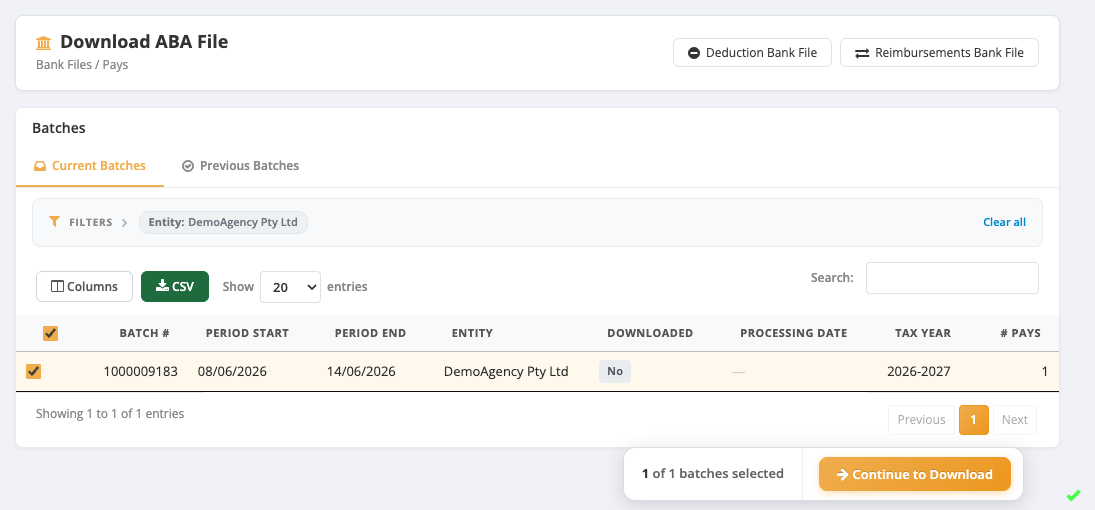
| Current Batches tab | Processed batches whose bank file has not been downloaded | Paying a batch for the first time |
| Previous Batches tab | Batches whose bank file has already been downloaded | Downloading a bank file again |
| Continue to Download | Opens the details for the batches you ticked | After ticking one or more batches |
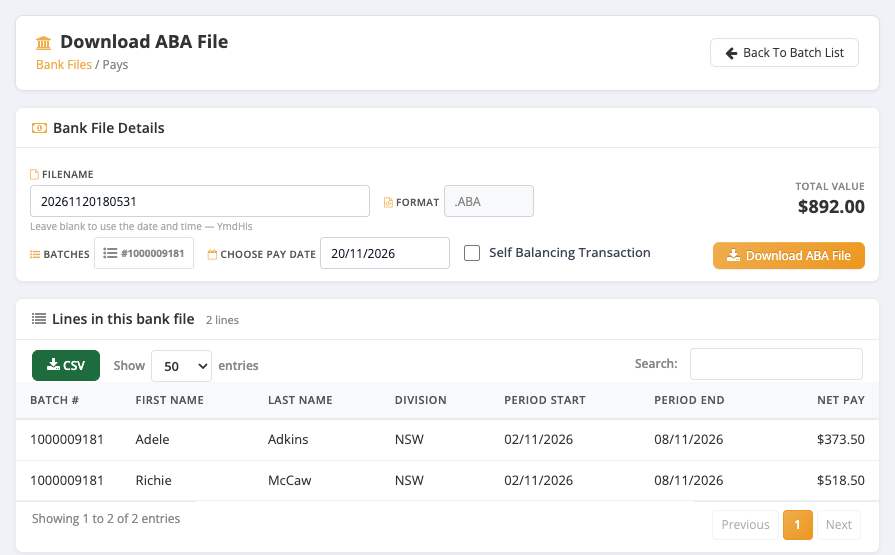
| Choose Pay Date | The date your employees will be paid. Defaults to today | When the pay date is later than today |
| Total Value | The total of all net pays in the file | Checking the amount against the Pay Report |
| Lines in this bank file | Each employee in the file and their net pay | Checking who is being paid |
| Deduction Bank File | Bank file for deductions paid to other accounts | Paying deductions |
| Reimbursements Bank File | Bank file for approved reimbursements | Paying reimbursements |
Before you download
Check these first. After the download the batch cannot be undone.
- The Pay Report for the batch is correct: the right employees, hours and net pay.
- Nobody is missing from the batch and nobody is in it who should not be.
- Each employee's bank account is correct.
If anything is wrong, undo the batch now and fix it. See Undoing a Pay Batch.
Download a bank file
- Go to Payroll > Download Bank File. The Download ABA File screen opens on the Current Batches tab.
- Tick the batch you want to pay. You can tick more than one batch to put them in the same file.
- Click Continue to Download.
- On Bank File Details, check Total Value and the employees listed under Lines in this bank file.
- Check Choose Pay Date. It defaults to today. You cannot choose a date in the past.
- Leave Filename as it is, or type your own. If you leave it blank, the date and time are used.
- Click Download ABA File. The file is saved by your browser.
- Upload the file to your bank.
If you came straight from processing a batch, the Next: Download ABA File(s) button on the Payroll batch complete screen takes you to step 1.
Download a bank file again
- Go to Payroll > Download Bank File.
- Click the Previous Batches tab.
- Tick the batch and click Continue to Download.
- Click Download ABA File.
- A Confirm Re-download message appears: "This batch has already been downloaded. Downloading it again will produce another ABA file for the same pays." Click Download to continue, or Cancel.
Downloading again creates a second file for the same pays. Upload only one of them to your bank, or your employees will be paid twice.
After the download
- The batch moves from Current Batches to Previous Batches, where Downloaded shows Yes and Processing Date shows the pay date.
- The batch appears under its pay date in Payroll > STP, on the To be sent tab, with a Send button. Before the bank file is downloaded it shows as Unpaid with a Download Bankfile button.
- The batch appears in Payroll > Send Payslips. See Sending Payslips.
- The batch can no longer be undone. See Undoing a Pay Batch.
If you need help
If the total or the employees in the bank file look wrong, do not upload the file to your bank. Raise a support ticket and include the batch number shown in Batches on the Bank File Details screen.