In a nutshell: To undo a processed pay batch, open its Pay Report from Payroll > Previous Batches and click Undo Batch. You can only do this before the bank file is downloaded.
Applies to: Australia and New Zealand
About
Undoing a batch reverses the processing. In PinvoiceR's own words, it will "remove any entries from the General Ledger and remove any accrued leave or deductions taken, and revert all transactions back to open and waiting to be processed."
After an undo, the pays are back in Payroll > Open Batches. You can correct them and process the batch again.
Quick Reference
| Part of the screen | What it shows | When to use it |
|---|---|---|
| Select Entity, Tax Year and Period | Filters for the list of previous batches | Finding the batch |
| Previous batches | Processed batches with their type, week end, batch date and pay date | Checking whether a batch has a pay date |
| Pay Report | Opens the Transaction Summary for that batch | Before undoing |
| Undo Batch | Opens the undo panel | Starting an undo |
| Select all divisions | Ticks every employee in the batch | Undoing the whole batch |
| Undo entire batch | Carries out the undo | After ticking the employees |
Before you start
A batch cannot be undone once any of these has happened:
- The bank file has been downloaded. The undo panel shows "The pays for this batch have already gone to bank on" followed by the date.
- The deduction bank file has been downloaded for the batch.
- The batch has been sent to the ATO through STP.
- The batch has been exported through Export Pay Journals.
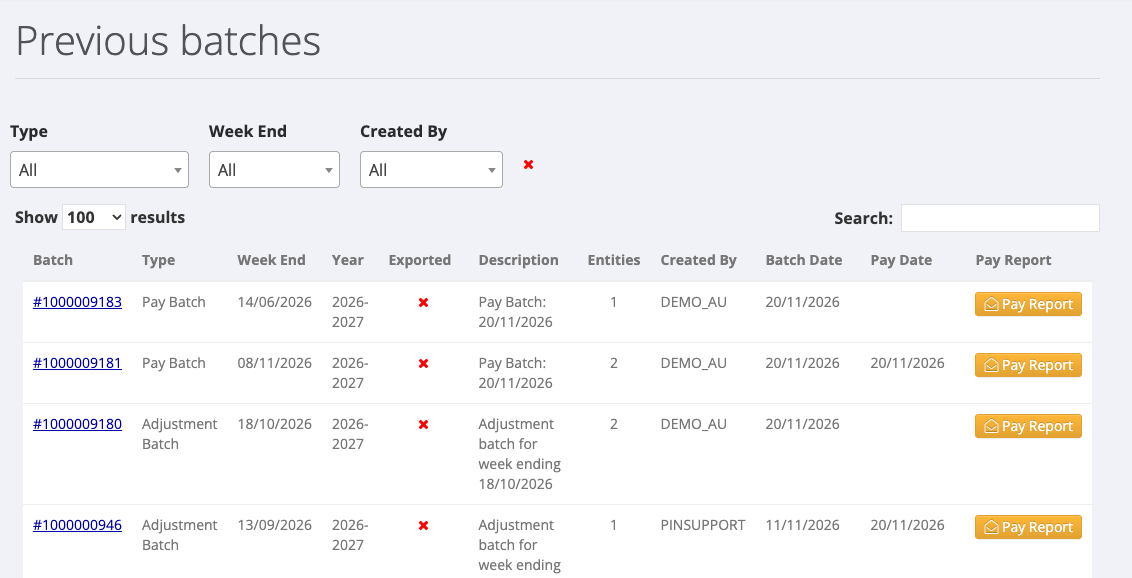
In the Previous batches list, a batch with a date in the Pay Date column has had its bank file downloaded.
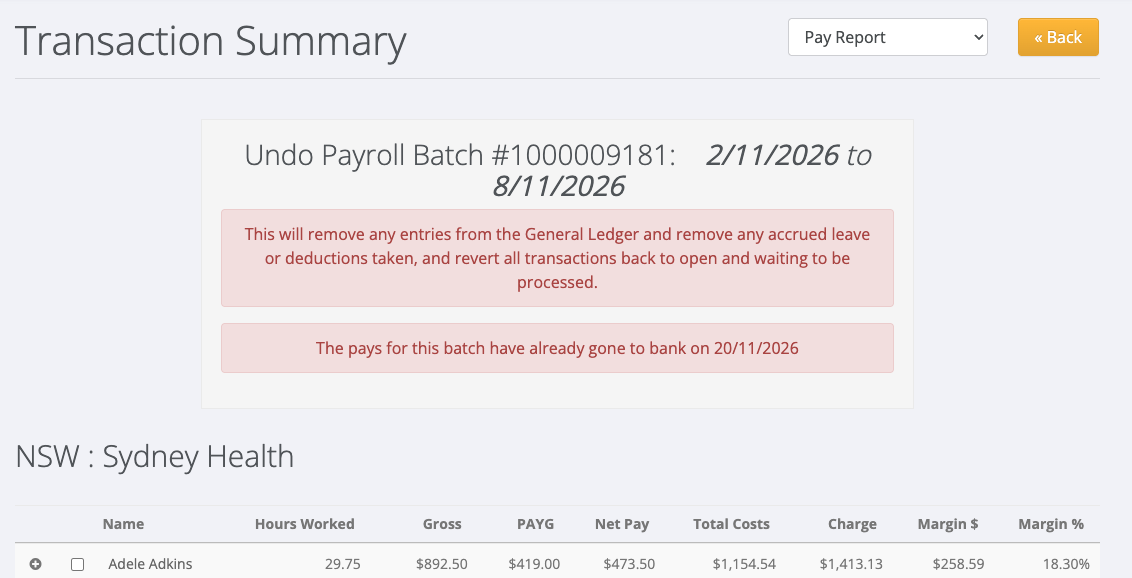
If you need to reverse a batch that can no longer be undone, raise a support ticket and include the batch number.
Undo a pay batch
- Go to Payroll > Previous Batches.
- Choose the Entity and Tax Year, and click Submit.
- Find the batch in the Previous batches list and click Pay Report on its row. The report opens in a new tab.
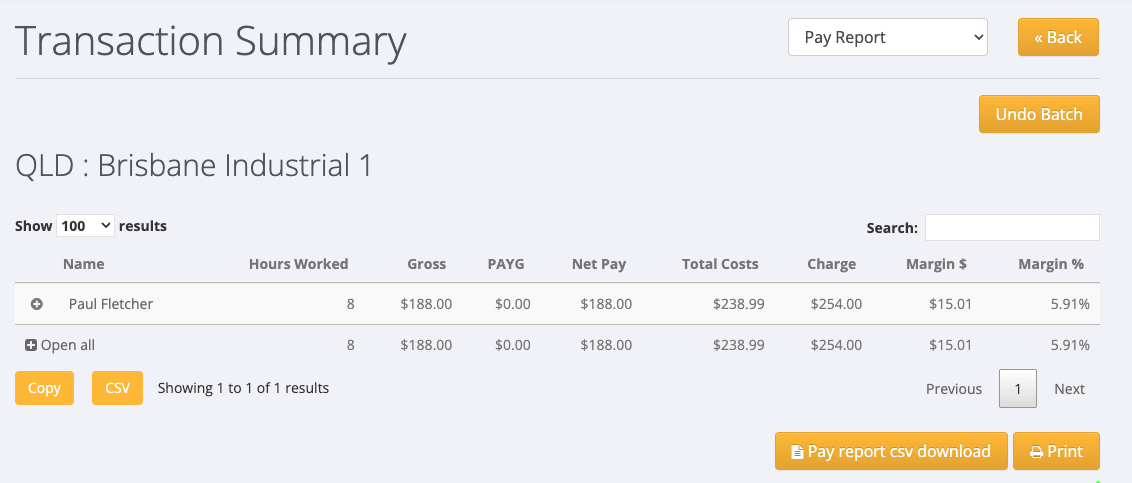
- On the Transaction Summary, click Undo Batch.
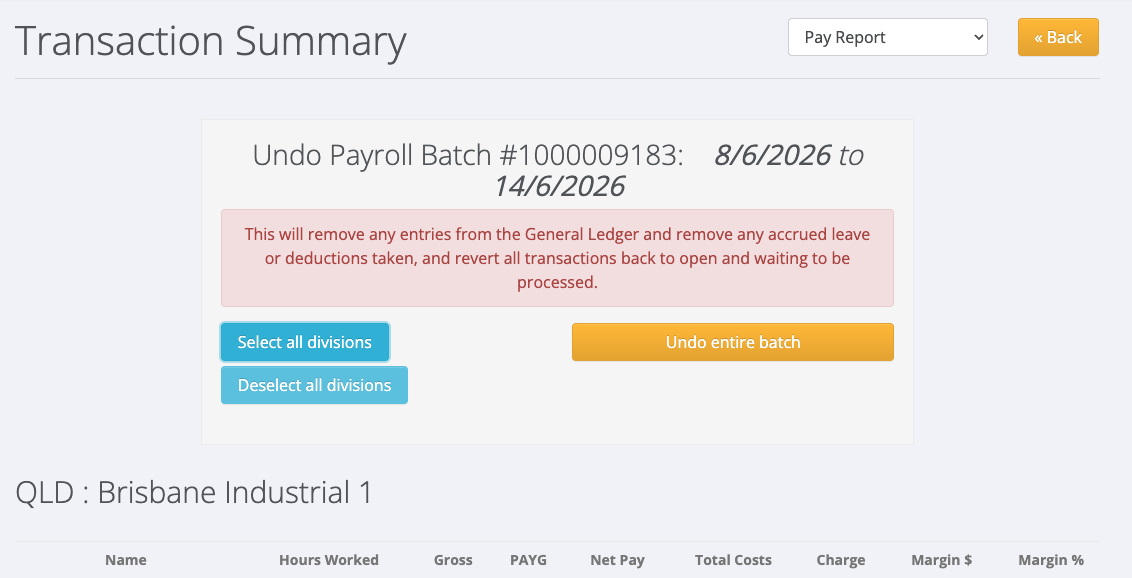
- In the Undo Payroll Batch panel, click Select all divisions to undo the whole batch. The button changes to Undo entire batch. To undo some employees only, tick just those employees in the list.
- Click Undo entire batch.
- A message confirms the undo, for example "Batch #1000009179 has been rolled back".
If you click the button without ticking anyone, you see "Please select employees to undo".
After the undo
The pays are back in Payroll > Open Batches under the same entity and pay period. Make your corrections, then process the batch again. See Processing a Pay Batch.
In New Zealand
- A batch that has been reported to Inland Revenue through payday filing cannot be undone. This takes the place of the STP rule above.
- The menu item for pay rows is Payroll > Edit Open Pays.