In a nutshell: Go to Payroll > Open Batches, open the Pay Report for the pay period, check it, and click Process Batch. Processing calculates and posts the pays for that period.
Applies to: Australia and New Zealand
About
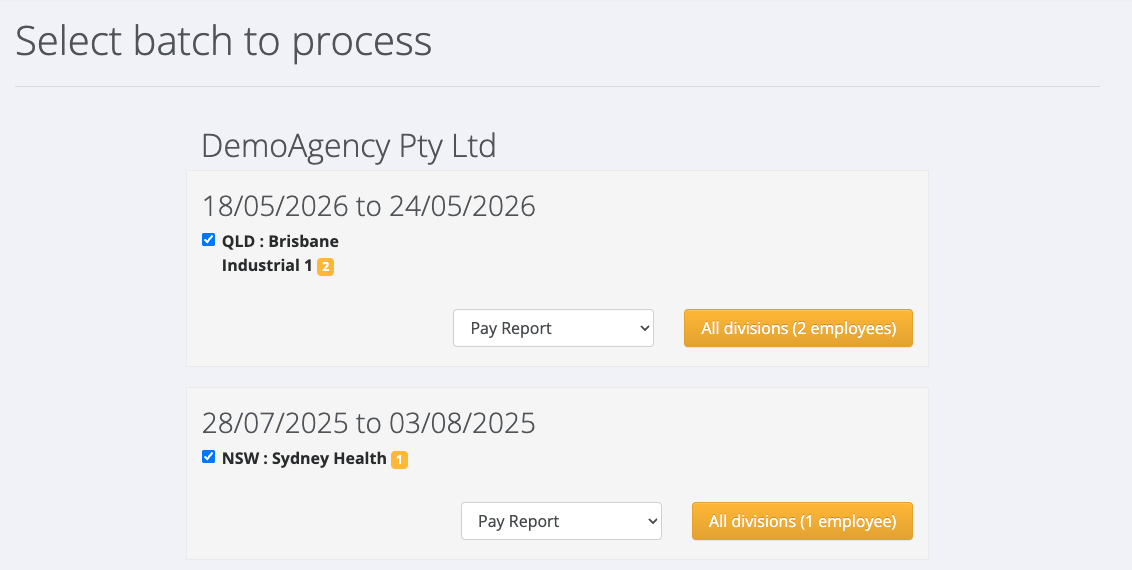
Open Batches lists every pay period that has pays waiting to be processed, grouped by entity. Each period shows its divisions and how many employees are in each.
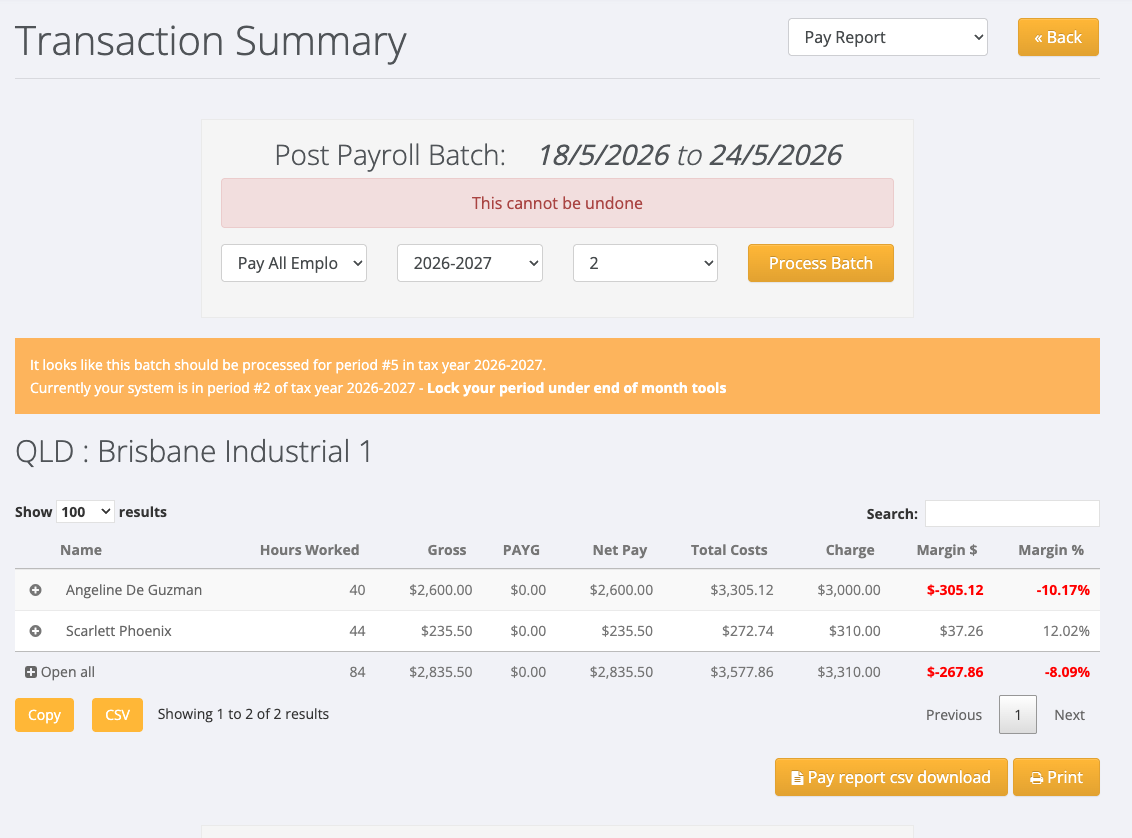
Before you process, PinvoiceR shows a Pay Report called the Transaction Summary. It is a preview: nothing is posted until you click Process Batch.
Quick Reference
| Part of the screen | What it shows | When to use it |
|---|---|---|
| Select batch to process | Open pay periods for each entity | Choosing what to pay |
| Division tick boxes | The divisions in the period, with the number of employees | Paying some divisions and not others |
| Pay Report drop-down | Pay Report, Charge Report or Client Charge Report | Choosing which report opens |
| All divisions (N employees) | Opens the report for the period | After choosing the divisions |
| Transaction Summary | Each employee's hours, gross, PAYG and net pay | Checking the pays before processing |
| Pay All Employees drop-down | Everyone in the batch, or one employee | Paying one employee now and the rest later |
| Process Batch | Posts the batch | When the Transaction Summary is correct |
Process a pay batch
- Go to Payroll > Open Batches. The Select batch to process screen opens.
- Find the entity and the pay period you want to pay.
- Leave all divisions ticked to pay everyone, or untick the divisions you do not want to pay yet.
- Leave the drop-down on Pay Report and click the button beside it, for example All divisions (2 employees).
- On the Transaction Summary, check each employee's Hours Worked, Gross, PAYG and Net Pay.
- In the Post Payroll Batch panel, leave the first drop-down on Pay All Employees, or choose one employee to pay only that person.
- Click Process Batch.
- When the screen shows Payroll batch complete, click Next: Download ABA File(s) to go on to the bank file.
The tax year and period in the Post Payroll Batch panel are set by PinvoiceR. You cannot change them here.
If a batch stays in Open Batches
A period stays in Open Batches while it still has pays that have not been processed.
- You paid one employee only. If you chose one employee instead of Pay All Employees, the other employees stay in Open Batches until you process them.
- You unticked a division. Pays in a division you did not include stay open.
- PinvoiceR stopped the batch. If something is wrong with an employee's record, you are sent back to Open Batches with a message naming the employee. Fix the employee's record, then process the batch again.
Messages you may see, and what each means:
| Message | What to check |
|---|---|
| "has errors with their bank account" | The employee's BSB and account number under Bank Details |
| "has errors with their tax code" | The employee's tax code |
| "has no date of birth set" | The employee's date of birth |
| "is not active" | Whether the employee has been made inactive |
| "has been paid with a pay code item which is not configured correctly" | The pay code item used on the employee's pay |
| "This period is locked" | The period has been locked under End of Month |
The period warning
You may see an orange message such as: "It looks like this batch should be processed for period #5 in tax year 2026-2027. Currently your system is in period #2 of tax year 2026-2027 - Lock your period under end of month tools".
This means the dates of the batch belong to a later period than the one your system is currently in. The message links to the End of Month tools, where periods are locked.
After processing
- Download the bank file: Downloading the Bank File.
- If you processed the batch by mistake: Undoing a Pay Batch.
- For the whole pay run: A Pay Run from Start to Finish.
In New Zealand
- The PAYG column is labelled PAYE.
- After processing, the button reads Next: Download Bank File(s). See Downloading the Bank File (New Zealand).