In a nutshell: After you process a pay batch, download its bank file from Payroll > Download Bank File, choosing the file format your bank uses, and upload it to your bank.
Applies to: New Zealand. For Australia, see Downloading the Bank File.
About
A bank file lists the net pay for every employee in one or more processed pay batches. In New Zealand you choose the format, because banks accept different ones.
Downloading the bank file also sets the batch's pay date. A batch needs a pay date before it appears in payday filing, so download the bank file first. See Payday Filing.
Once the bank file has been downloaded, the batch can no longer be undone. Check the Pay Report before you download.
Quick Reference
| Part of the screen | What it shows | When to use it |
|---|---|---|
| Current Batches tab | Processed batches whose bank file has not been downloaded | Paying a batch for the first time |
| Previous Batches tab | Batches whose bank file has already been downloaded | Downloading a bank file again |
| Continue to Download | Opens the details for the batches you ticked | After ticking one or more batches |
| Payslip Date | The date shown on the payslips and used as the pay date | Checking before you download |
| Format | .mt9, .abi, .afi, .txt or .csv | Choosing the format your bank accepts |
| Total Value | The total of all net pays in the file | Checking the amount against the Pay Report |
| Deduction Bank File | Bank file for deductions paid to other accounts | Paying deductions |
| Reimbursements Bank File | Bank file for approved reimbursements | Paying reimbursements |
Before you download
Check these first. After the download the batch cannot be undone.
- The Pay Report for the batch is correct: the right employees, hours and net pay.
- Nobody is missing from the batch and nobody is in it who should not be.
- Each employee's bank account is correct.
Download a bank file
- Go to Payroll > Download Bank File. The screen opens on the Current Batches tab.
- Tick the batch you want to pay. You can tick more than one batch to put them in the same file.
- Click Continue to Download.
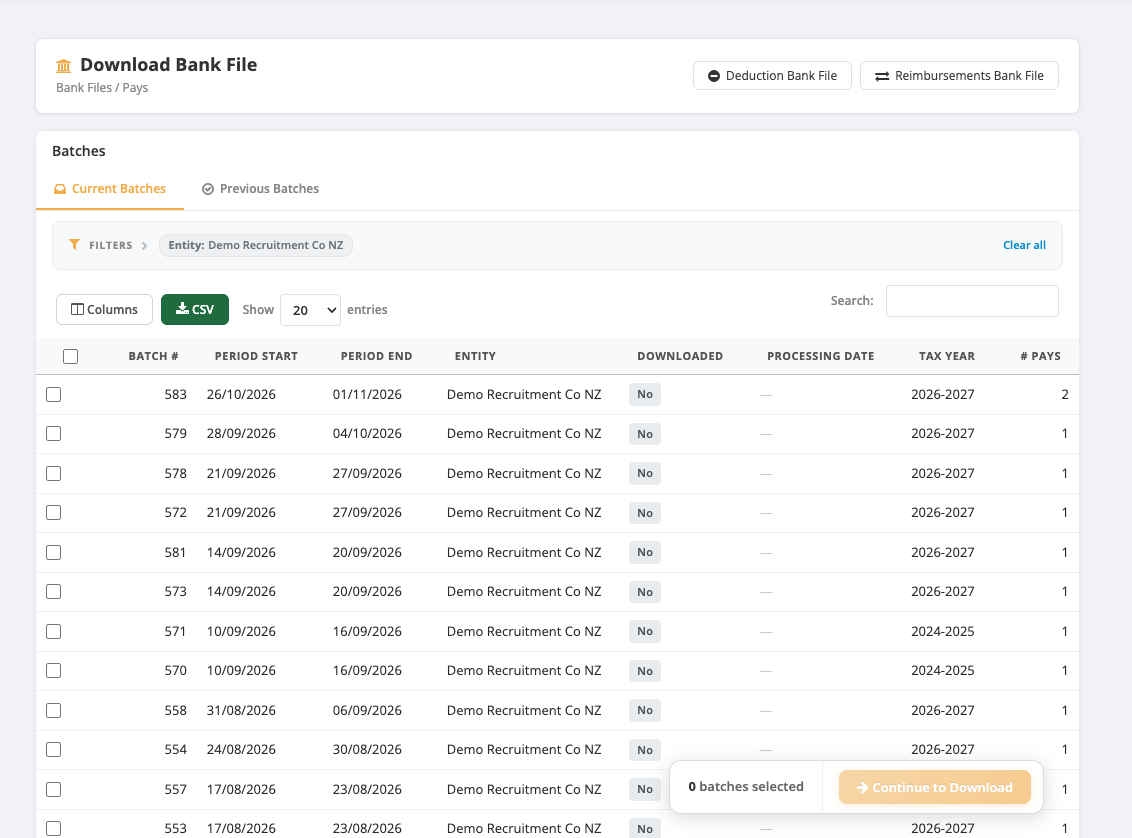
- On Bank File Details, check Total Value and the employees listed under Lines in this bank file.
- Check the Payslip Date.
- Choose the Format your bank accepts. The .csv format is for Westpac (03) accounts only.
- Leave Filename as it is, or type your own.
- Click Download Batches. The file is saved by your browser.
- Upload the file to your bank.
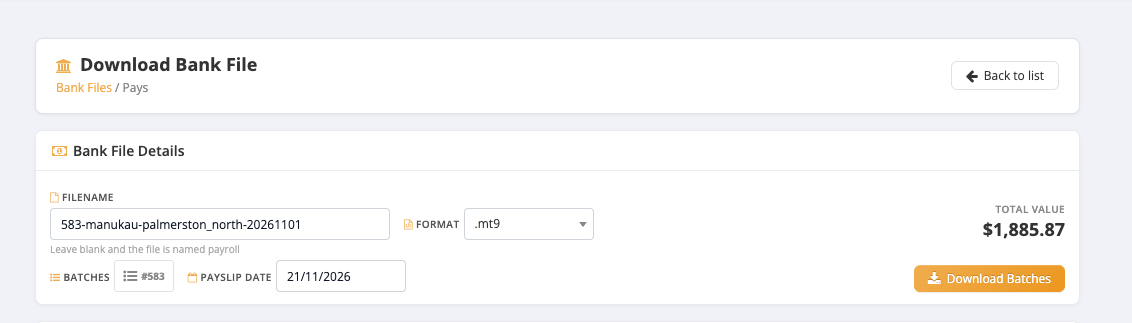
If you are not sure which format your bank needs, ask your bank which bulk payment file formats it accepts.
Download a bank file again
- Go to Payroll > Download Bank File and click the Previous Batches tab.
- Tick the batch, click Continue to Download, choose the format and download.
Downloading again creates a second file for the same pays. Upload only one of them to your bank, or your employees will be paid twice.
After the download
- The batch moves from Current Batches to Previous Batches.
- The batch appears under its pay date in Payroll > Payday Filing.
- The batch appears in Payroll > Send Payslips. See Sending Payslips.
- The batch can no longer be undone. See Undoing a Pay Batch.