In a nutshell: A permanent employee's salary is set on the Edit Salary screen, which you open from the Permanent Options panel on the employee's record. The salary and the Daily Average Hours on that screen decide what the employee is paid in a permanent pay run.
Applies to: Australia
About
Permanent (salaried) staff are paid from a salary, not from timesheets. PinvoiceR works out each pay from three things on the employee's record: the salary, the hours they work each day, and the division and location their pay belongs to.
The Permanent Options panel is where the division, location and salary are set. If the panel is missing from an employee's record, or you cannot see permanent staff at all, see Why an Employee Is Missing from a Permanent Pay.
Quick Reference
| Part of the screen | What it shows | When to use it |
|---|---|---|
| Permanent Options panel | Division, Location and Annual Salary for the employee | Setting where the pay belongs, and opening the salary screen |
| Edit Salary | Opens the salary screen | Viewing or changing the salary |
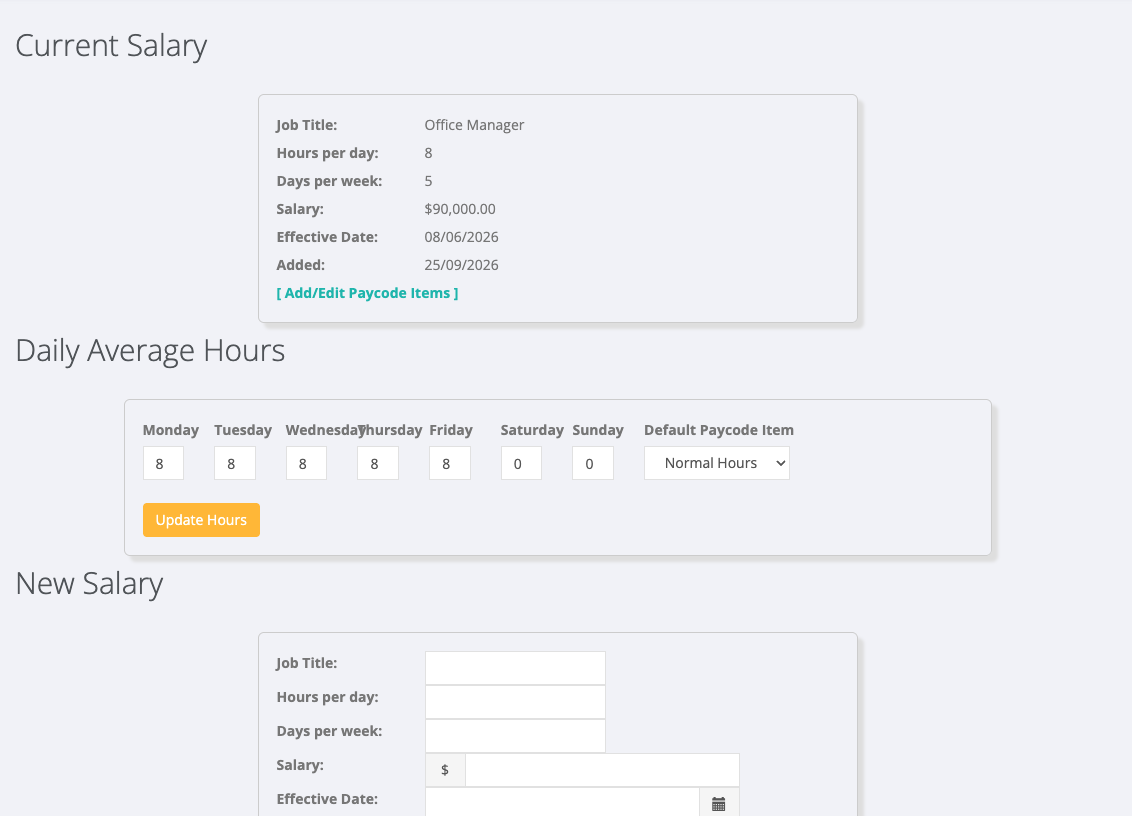
| Current Salary | Job title, hours per day, days per week, salary and effective date | Checking the salary in use |
| Daily Average Hours | The hours paid for each day of the week | Setting the hours a permanent pay uses |
| New Salary | A blank form for a new salary | Giving the employee a new salary |
Set the division and location
- Open the employee's record and click Edit Employee.
- Find the Permanent Options panel. Click its heading to open it if it is closed.
- Choose the Division and the Location the employee's pay belongs to.
- Click Apply Changes.
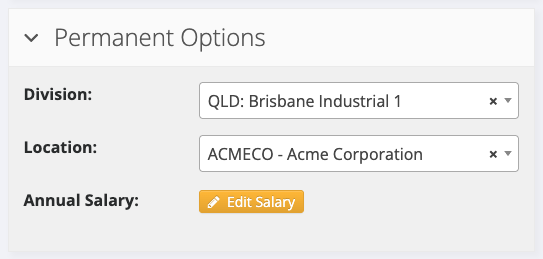
The permanent pay run lists employees by entity. Choose a Division that belongs to the entity the employee is paid by.
Add a salary
- In the Permanent Options panel, click Edit Salary.
- Under New Salary, enter the Job Title, Hours per day, Days per week, Salary and Effective Date.
- Click Add New Salary.
The new salary appears under Current Salary.
Set the daily hours
A permanent pay is built from the Daily Average Hours. If they are blank, the employee appears in the permanent pay run with a Gross Pay of $0.00.
- In the Permanent Options panel, click Edit Salary.
- Under Daily Average Hours, enter the hours for each day the employee works, Monday to Sunday.
- Leave Default Paycode Item as it is unless you have been told to change it.
- Click Update Hours. The message "Average Hours updated successfully" confirms the change.
Click Back to employee to return to the employee's record.
Next step
Pay the employee: Running a Permanent Pay.