In a nutshell: PinvoiceR has no setting to withhold a fixed extra amount of tax from every pay. To change the tax on one pay, use System > Tools > Adjust Employee Tax after the batch is processed and before the bank file is downloaded.
Applies to: Australia. The Adjust Employee Tax tool is also under System > Tools in New Zealand.
About
Tax is calculated from the employee's tax details and the amount of the pay. If an employee asks for more tax to be taken out, or a pay's tax needs correcting, the Adjust Tax tool lets you change the tax on a pay that has been processed but not yet paid.
The adjustment applies to that one pay. It is not remembered for the next pay run, so it has to be repeated each time.
Quick Reference
| Part of the screen | What it shows |
|---|---|
| Adjust Tax list | Processed pays whose bank file has not been downloaded, with Period End, Tax and Pay |
| Tax | The tax on that pay |
| Pay | The net pay |
Adjust the tax on a pay
- Process the pay batch. See Processing a Pay Batch.
- Before downloading the bank file, go to System > Tools and click Adjust Employee Tax. Adjust Tax opens.
- Find the employee's pay in the list and open it.
- Change the Tax. The Net Pay changes to match.
- Click Save.
- Download the bank file. See Downloading the Bank File.
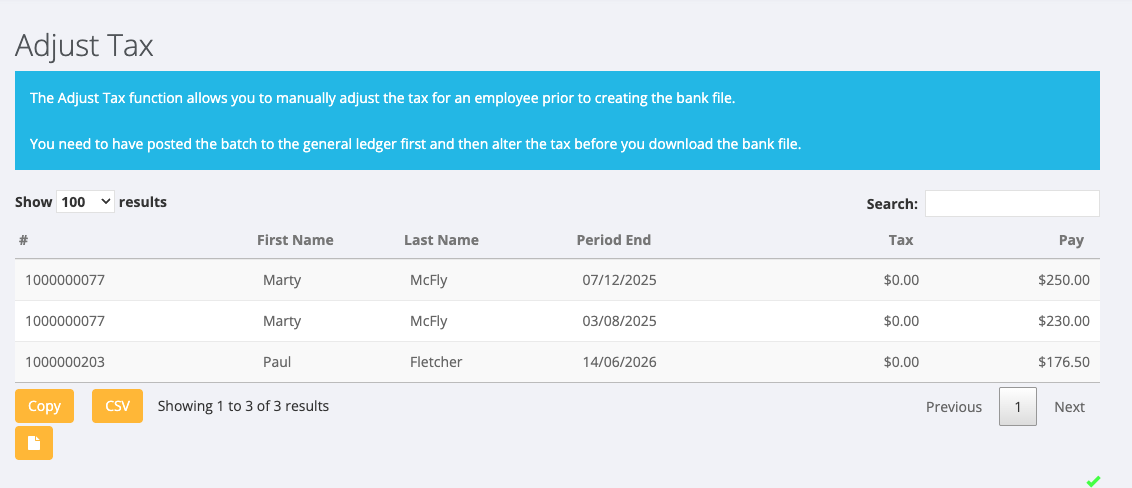
The order matters. As the screen says: "You need to have posted the batch to the general ledger first and then alter the tax before you download the bank file." Once the bank file is downloaded, the pay no longer appears in this list.
If the tax is wrong on every pay
A pay's tax comes from the Tax panel on the employee's record: the Tax Code and settings such as HELP and SFSS. If the tax is wrong each time, correct those details on the employee instead of adjusting each pay.
If an employee wants extra tax withheld every pay
Repeat the adjustment each pay run, or raise a support ticket to discuss the options for that employee.