In a nutshell: Payroll > Edit Pay Rows lists the pay lines for a period. Use it to correct or delete lines that have not been processed yet, for example hours entered against the wrong day or a pay created by mistake.
Applies to: Australia and New Zealand
About
Every pay is made up of pay rows: one line for each pay code item, day and quantity. Until a batch is processed, its rows are open and can be changed. Edit Pay Rows shows them all for a period, so you can fix them without re-entering the pay.
The same screen is used for invoice lines, under Invoices > Edit Invoice Rows.
Quick Reference
| Part of the screen | What it shows | When to use it |
|---|---|---|
| Period and Divisions | The pay period and divisions to list | Start here, then click View Period |
| Open tab | Rows not yet paid and not yet invoiced | Correcting or deleting rows |
| Invoiced tab | Rows that have been invoiced but not paid | Checking |
| Paid tab | Rows that have been paid but not invoiced | Checking |
| Closed tab | Rows that have been both paid and invoiced | Checking |
| Select Filtered | Selects every row shown | Changing or deleting several rows |
| Edit | Opens the selected rows for editing | Correcting a quantity or rate |
| Delete | Deletes the selected rows | Removing rows created by mistake |
Find the rows
- Go to Payroll > Edit Pay Rows. Edit Transactions opens.
- Choose the Period, and a division in Divisions if you want to narrow the list.
- Click View Period.
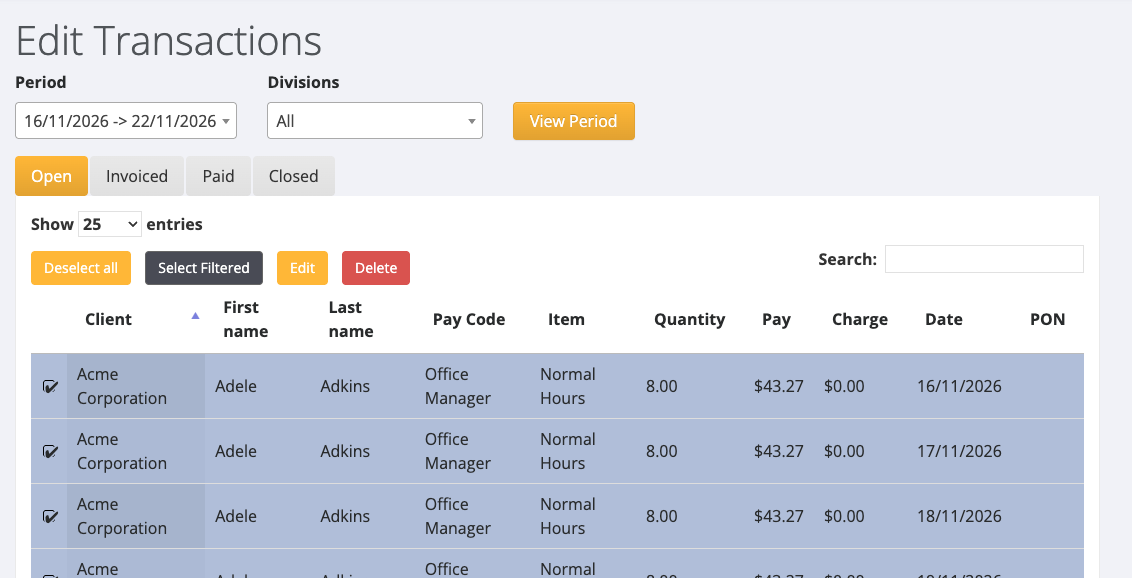
The Open tab lists each row with its Client, employee name, Pay Code, Item, Quantity, Pay, Charge and Date. Use Search to find an employee.
Change a row
- Click the row to select it. To select several, click each one, or click Select Filtered to select every row shown.
- Click Edit.
- Change the Quantity, pay rate or charge rate, and save.
A quantity is required. Enter 0 for a pay rate or charge rate only if the row is genuinely unpaid or not charged.
Delete rows
- On the Open tab, select the rows to delete.
- Click Delete.
- A box asks "Are you sure you want to delete" followed by the number of transactions. Click Delete to confirm.
Deleted rows are removed from Payroll > Open Batches. If they were the only rows for a pay period, the period disappears from Open Batches.
Only rows on the Open tab can be deleted.
If the row has already been processed
A row that has been paid cannot be corrected here. Undo the batch first, if its bank file has not been downloaded. See Undoing a Pay Batch. Otherwise raise a support ticket.
In New Zealand
- The menu item is Payroll > Edit Open Pays. The screen is the same.