In a nutshell: If an employee has not received a payslip, check three things in order: that the batch's bank file was downloaded, that the payslip was sent, and whether the Sending Queue shows an error for it.
Applies to: Australia and New Zealand
About
Payslips are emailed from a queue. A payslip can be missing because it was never queued, because it is still waiting in the queue, or because the email could not be sent. The checks below cover each case.
Quick Reference
| What you see | What it means | What to do |
|---|---|---|
| The batch is not listed in Send Payslips | The bank file has not been downloaded, so the batch has no pay date | Download the bank file |
| The batch is on the Unsent Payslips tab | The payslips have not been sent yet | Select the batch and click Send Selected |
| The payslip is on the Queued tab with no warning | It is waiting to be sent | Check again later |
| The payslip is on the Queued tab with a warning | It could not be sent. The reason is shown beside it | Fix the cause, then send it again |
| The payslip is on the Sent tab | It was sent | Ask the employee to check their junk folder and confirm their email address |
Check 1: Is the batch listed in Send Payslips?
- Go to Payroll > Send Payslips, choose the Entity and click Select.
- Look for the batch on the Unsent Payslips and Sent Payslips tabs.
If the batch is on neither tab, its bank file has probably not been downloaded. A batch needs a pay date before it appears here. See Downloading the Bank File.
If the batch is on Unsent Payslips, its payslips have not been sent. See Sending Payslips.
Check 2: Is the payslip in the Sending Queue?
- Go to Payroll > Send Payslips and click Sending Queue.
- Look for the employee on the Queued tab. Check that the Email shown is correct.
A payslip with no warning beside it is still waiting to be sent.
Check 3: Does the queue show a warning?
A payslip that could not be sent has a warning beside it with the reason. For example:
- "Not sent - this payslip was queued more than 14 days ago, so it was not sent automatically. Send manually if it should still go out." Click Send manually on that row to send it.
- A message about an invalid email address means the email on the employee's record is missing or wrong. Correct the employee's email address, then send the payslip again.
After fixing the cause, tick the payslip and click Clear errors to put it back in the queue.
Check 4: Was the email delivered?
Each employee has an email log showing every email PinvoiceR sent them and what happened to it.
- Open the employee's record.
- Click Employee at the top right, then Emails. The Email Log opens, with the employee's email address in the title.
- Find the payslip by its Subject and Date. The Status column shows the result, for example Delivered.
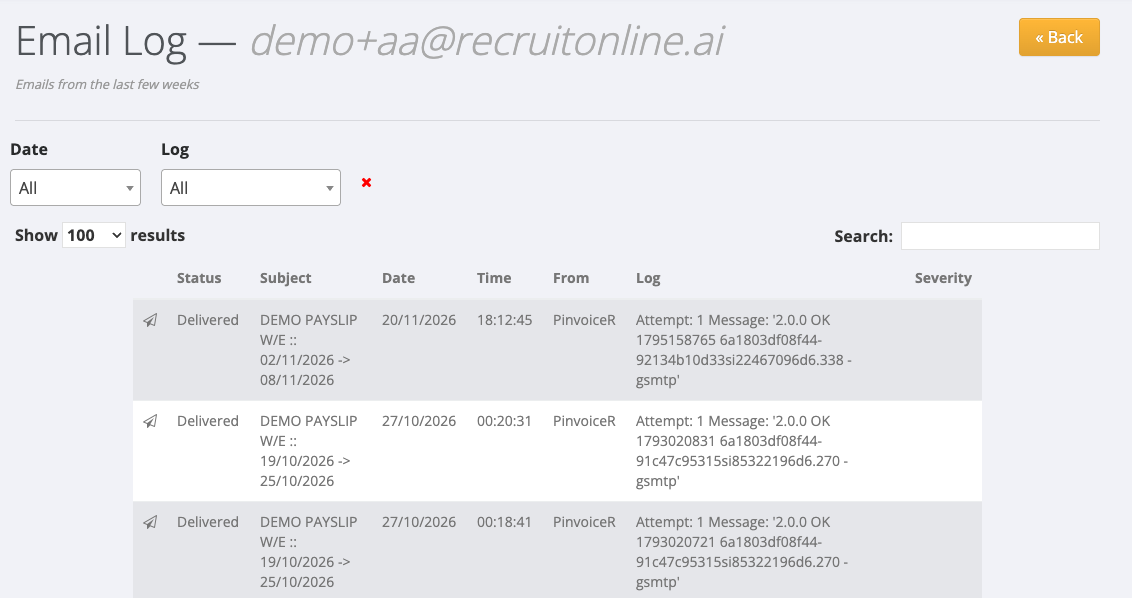
The log covers emails from the last few weeks.
If the payslip was delivered but the employee cannot find it
- Confirm the employee's email address on their employee record.
- Ask the employee to check their junk or spam folder.
If the address is correct and the payslip still has not arrived, raise a support ticket with the employee's name, the batch number and the pay period.