In a nutshell: After the bank file is downloaded, go to Payroll > STP, click Send beside the pay date on the To be sent tab, complete the declaration and click Lodge with ATO.
Applies to: Australia. In New Zealand, see Payday Filing.
About
Single Touch Payroll (STP) reports each pay run to the ATO. PinvoiceR groups processed batches by pay date, and you lodge one submission for each pay date.
A batch gets its pay date when its bank file is downloaded. Until then it is listed as Unpaid and cannot be sent. See Downloading the Bank File.
Quick Reference
| Tab | What it shows | When to use it |
|---|---|---|
| To be sent | Pay dates with batches waiting to be lodged | Lodging a pay run |
| Sent | Submissions already lodged | Checking what was sent, or resending |
| Update YTD | Employees, for sending updated year-to-date figures | Correcting figures already reported |
| Finalise YTD | The end of year declaration | Finalising the financial year |
| View YTD | Year-to-date figures by employee | Checking what has been reported |
| Errors | Errors returned for submissions | Finding out why a submission failed |
| Report | A report of STP submissions | Reviewing submissions |
Send a pay run to the ATO
- Go to Payroll > STP.
- Choose the entity and the tax year at the top right.
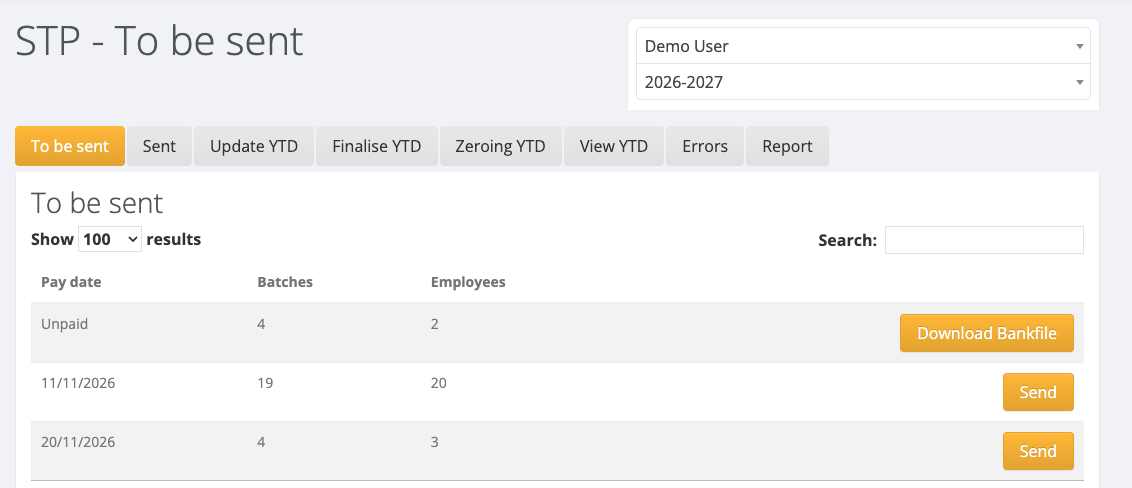
- On the To be sent tab, find the pay date. Each row shows the Pay date, the number of Batches and the number of Employees.
- Click Send on that row.
- On the Declaration tab, under Reporting Party Declaration:
- Enter your name in Payer Declarer Identifier.
- Enter today's date in Payer Declaration Date.
- Tick This is the final payment for this financial year only if it is.
- Read the declaration, then tick Tick this box to sign this declaration with the credentials entered above and the AUSkey used by Ozedi.
- Click Lodge with ATO.
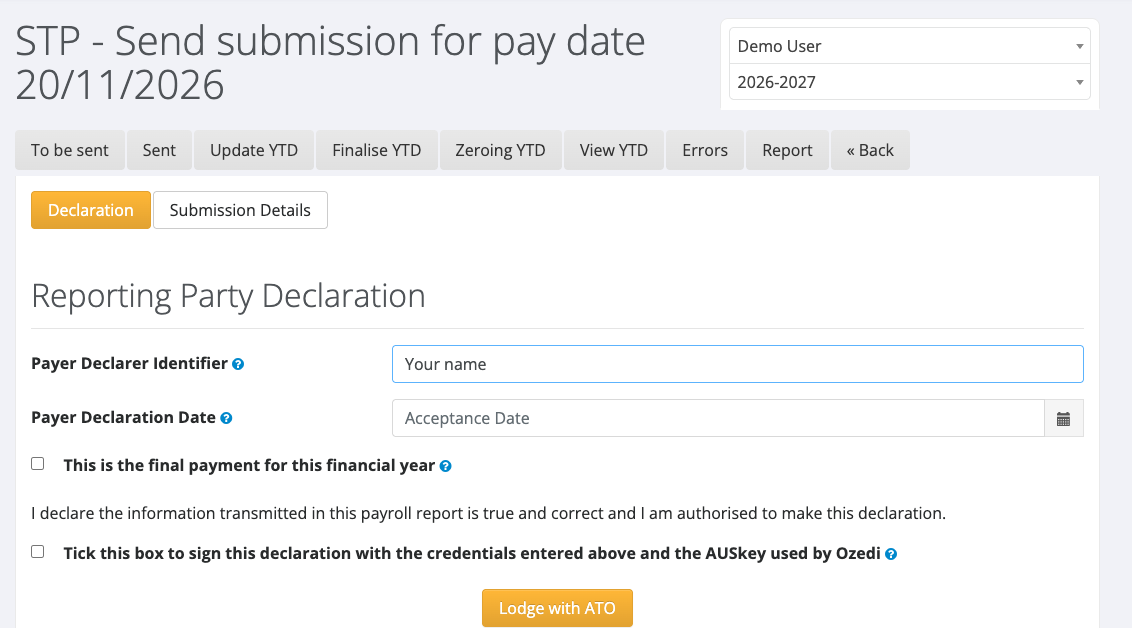
The Submission Details tab shows what will be sent, if you want to check it before lodging.
If a row shows Unpaid
A row marked Unpaid has batches whose bank file has not been downloaded. Click Download Bankfile on that row, download the bank file, then return to Payroll > STP. The batches move to a row under their pay date.
Check what has been sent
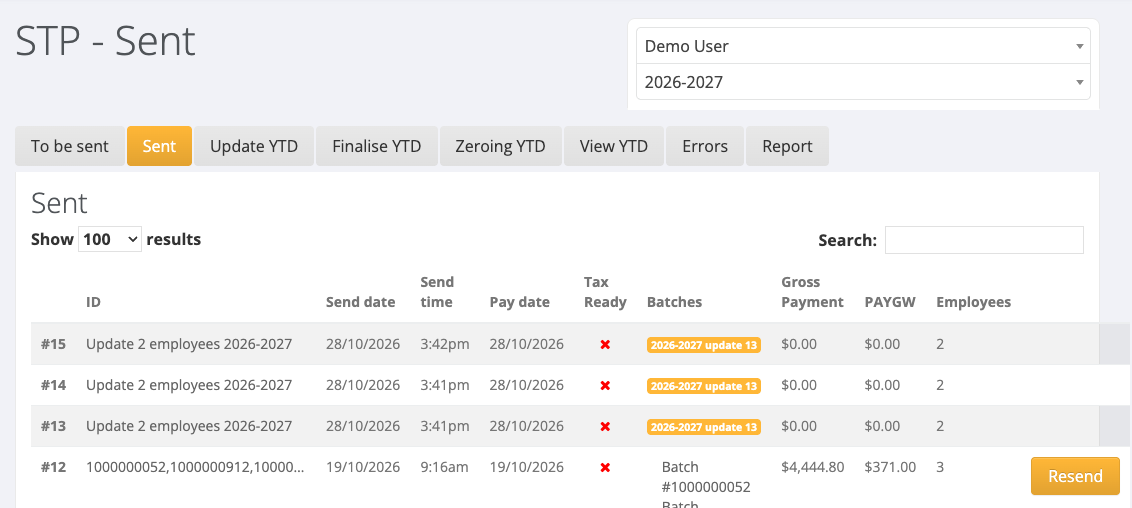
Click the Sent tab. Each submission shows its ID, Send date, Send time, Pay date, Batches, Gross Payment, PAYGW and Employees.
Adjustment batches
Adjustment batches are not listed on the To be sent tab. If you have processed an adjustment batch and need it reported to the ATO, raise a support ticket and include the batch number.
If lodging fails
- Check the Errors tab for the reason.
- Messages that name an employee, such as an invalid TFN, a missing date of birth or a missing country, mean that employee's record needs correcting. Fix the record, then send again.
- "Could not determine pay date, please download the bank file for this batch" means the bank file has not been downloaded.
If you cannot resolve an error, raise a support ticket with the pay date and the message shown.