In a nutshell: When timesheets or an hours file will not import, PinvoiceR names the row and the reason. Most errors come from one of three things: the order cannot be found, the pay code has no matching item, or the hours are already in the system.
Applies to: Australia and New Zealand
About
Hours reach PinvoiceR in two ways:
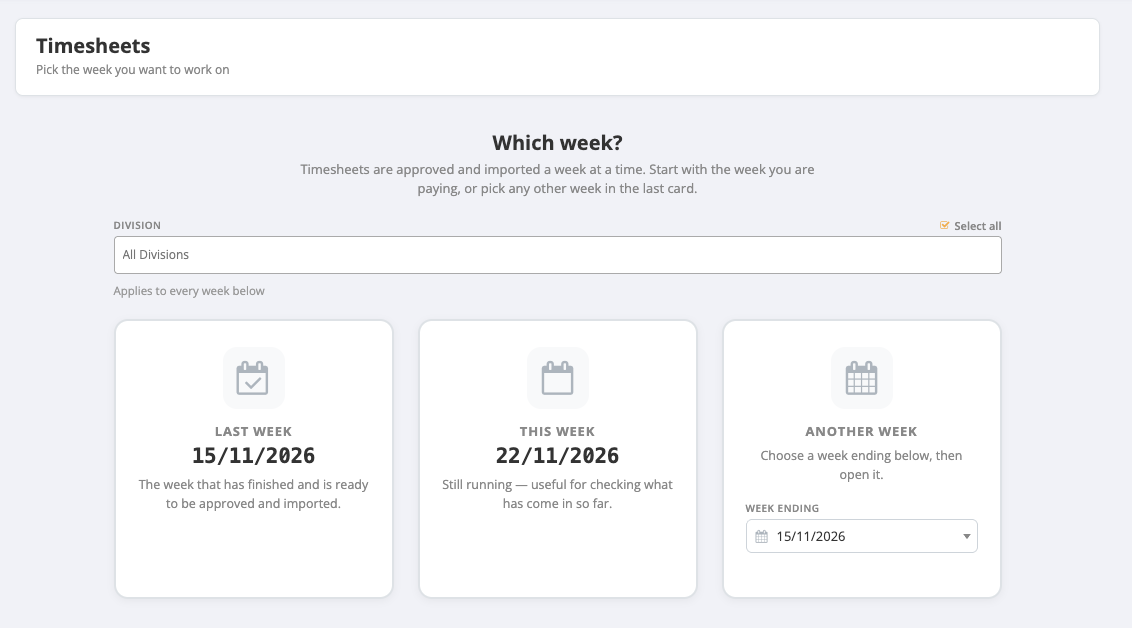
- Online timesheets, approved and imported a week at a time from Payroll > Timesheets or Payroll > Hours Import.
- A CSV file of hours, uploaded from Payroll > Hours Import > Upload CSV.
Either way, each line of hours has to be matched to an order and to a pay code item on that order's pay code. When it cannot be matched, the line is held back with an error and the rest are imported.
Quick Reference
| Message | What it means | What to do |
|---|---|---|
| "Could not find pay code items for pay code" followed by a number | The order's pay code is inactive, or has no active items | Open the pay code and check it and its items are active |
| "The Award Engine Code ... is not mapped to a Pay Code Item" | The award rules produced a kind of hour the pay code has no item for | Add the item to the pay code named in the message |
| "This order could not be found" | The timesheet's order is not in PinvoiceR | Check the order exists and is active |
| "This person already has hours in the system for the current week" | Hours for that employee and week have already been imported | Remove the duplicate hours, then import again |
| "No Pay code items found" | A line in an uploaded file has no matching pay code item | Choose the item for that line and click Update |
| "Duplicate external order ID's found" | Two orders share the same external order ID | Correct the orders, then import again |
"Could not find pay code items"
The full message reads "Could not find pay code items for pay code" followed by the pay code number. It appears on a timesheet when the order's pay code cannot be used.
- Note the pay code number in the message.
- Go to System > Global Pay Codes and open that pay code.
- Check Active shows YES.
- Check the pay code has at least one item, and that the items are active.
See Pay Codes and Pay Code Items. When the pay code is fixed, open the timesheets again.
An award code with no pay code item
Messages such as "The Award Engine Code ... is not mapped to a Pay Code Item so the correct #ID cannot be retrieved" or "... produced hours ... but has no Pay Code Item behind it, so those hours cannot be paid" mean the award rules worked out a type of hour, for example a night shift rate, that the order's pay code has no item for.
- Note the award code and the pay code named in the message.
- Open the pay code in System > Global Pay Codes.
- Click Add Pay Code Item and add an item for that type of hour, with its pay and charge rates.
Hours already in the system
"This person already has hours in the system for the current week" means the employee already has pay rows for that week, so importing would pay them twice.
Check the rows in Payroll > Edit Pay Rows. If they are a duplicate, delete them and import again. See Editing and Deleting Pay Rows.
Errors when uploading a CSV file
- Go to Payroll > Hours Import and click Upload CSV. Import Hours opens.
- Choose the file under CSV Upload, choose a Division if you want to assign the hours to one, and click Import.
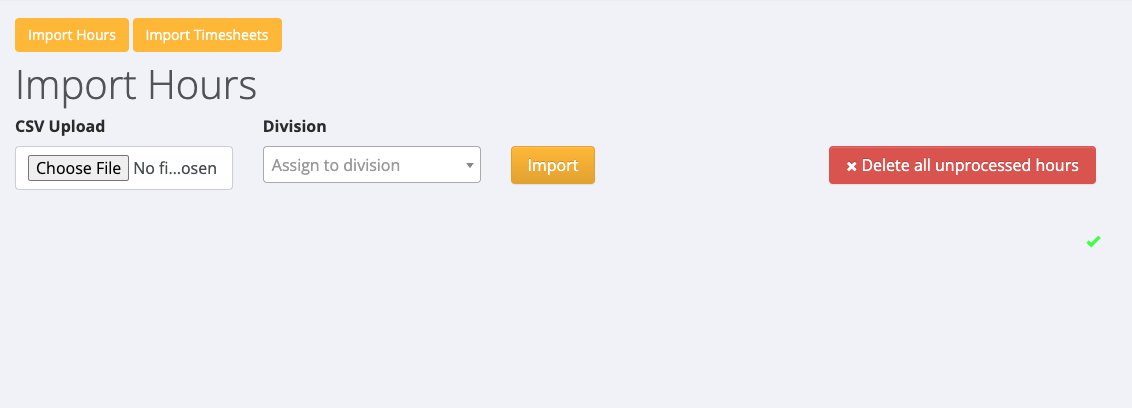
After the upload, lines that could not be matched are listed in two groups:
- Hours with no associated order: choose the order for each line and click Update.
- Hours without a valid pay code item: choose the item for each line and click Update.
Lines that matched are listed under Ready to import. Click Process to create the pays.
Messages about the file itself:
| Message | What to check |
|---|---|
| "No rows found in CSV" | The file is empty, or not a CSV file |
| "There are more columns in the CSV file than you have mapping columns set up" or the reverse | The file's columns do not match the layout set up for your organisation |
| "Could not interpret CSV date column" | A date in the file is not in a format PinvoiceR accepts |
| "Week ending not set on row", "Quantity not set on row", "Invalid quantity set on row" | The row named is missing a value or has one that is not a number |
The layout of the CSV file, meaning which column holds what, is set up for your organisation by PinvoiceR support. If your file's layout has changed, raise a support ticket and attach a sample file.
If you cannot clear an error
Raise a support ticket with the week ending, the employee's name and the exact message shown.